Copy Paste Assistant

Tired of repeatedly typing addresses, email templates, or code snippets? Copy Paste Assistant is a lightweight, privacy-focused tool designed to help you manage common text snippets.

Whether you're filling out repetitive forms, replying to customer inquiries, or managing developer snippets, this extension makes your workflow smoother.
Learn More
Copy Paste Assistant

Key Features

๐Ÿ“‹

FLOATING ASSISTANT

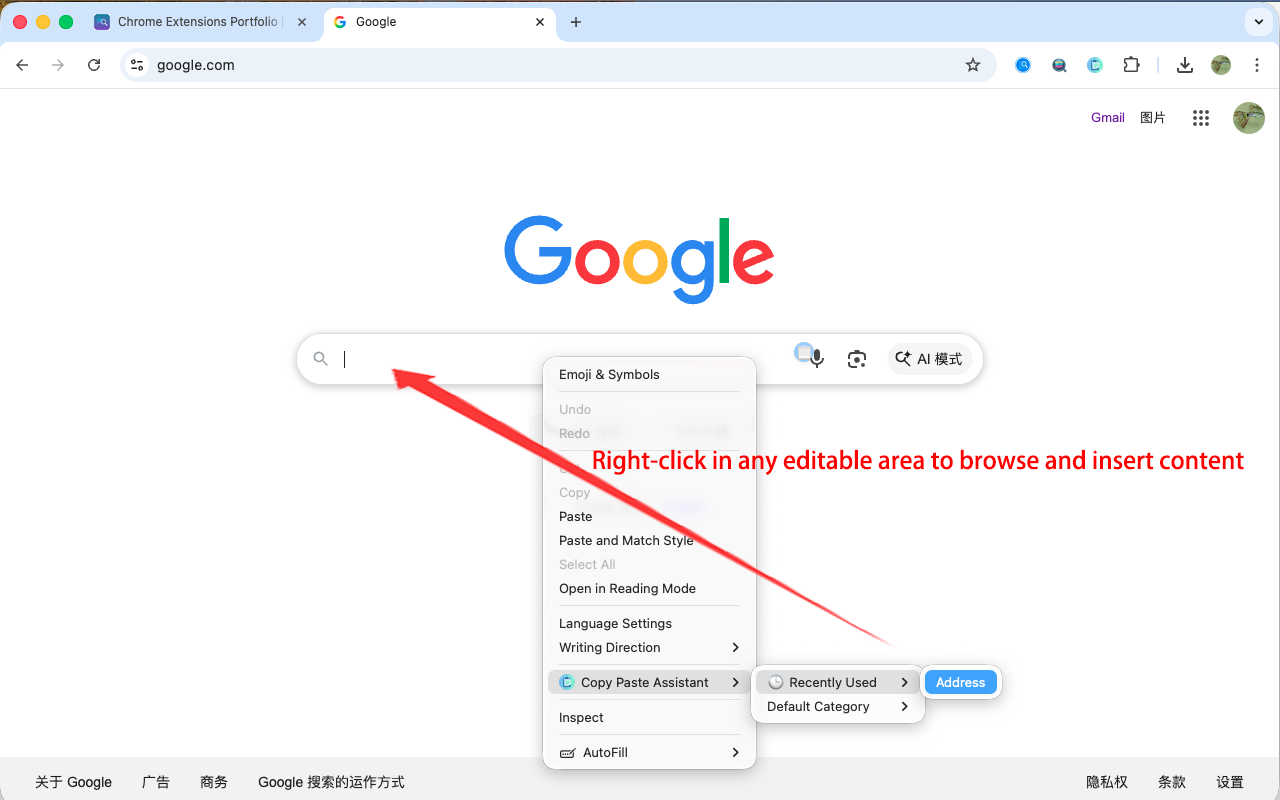
A smart icon appears near input fields for instant access to your snippets without switching views.

๐Ÿ–ฑ๏ธ

ENHANCED CONTEXT MENU

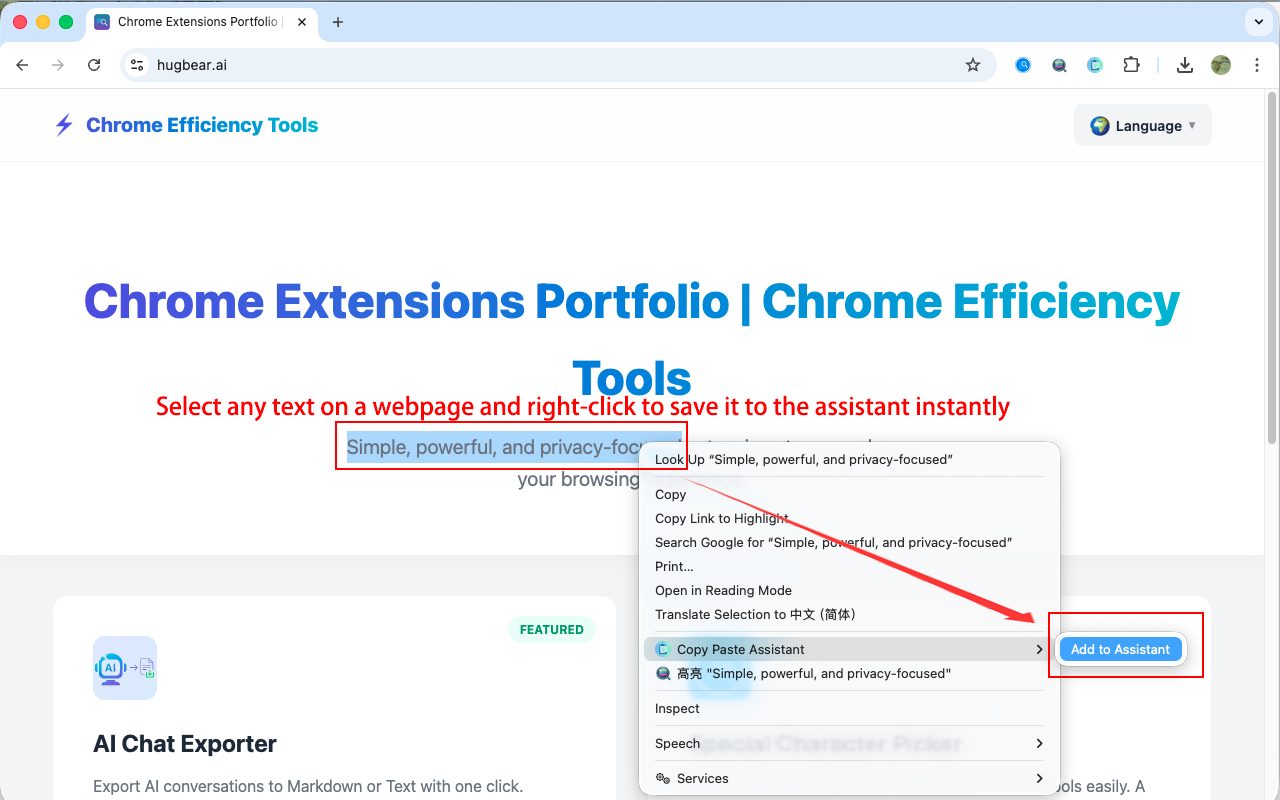
Quickly save selected text or insert snippets via a multi-level right-click menu.

๐Ÿ•’

DYNAMIC RECENTLY USED

Automatically tracks and pins your most used items for even faster access.

๐Ÿ—‚๏ธ

ORGANIZED CATEGORIES

Manage your snippets with custom categories, labels, and pinning support.

๐Ÿ”

GLOBAL SEARCH

Find any snippet instantly with cross-category search and keyword highlighting.

๐Ÿ”’

LOCAL PRIVACY

All data is stored locally. Offline operation ensures your information never leaves your device.

๐Ÿ’พ

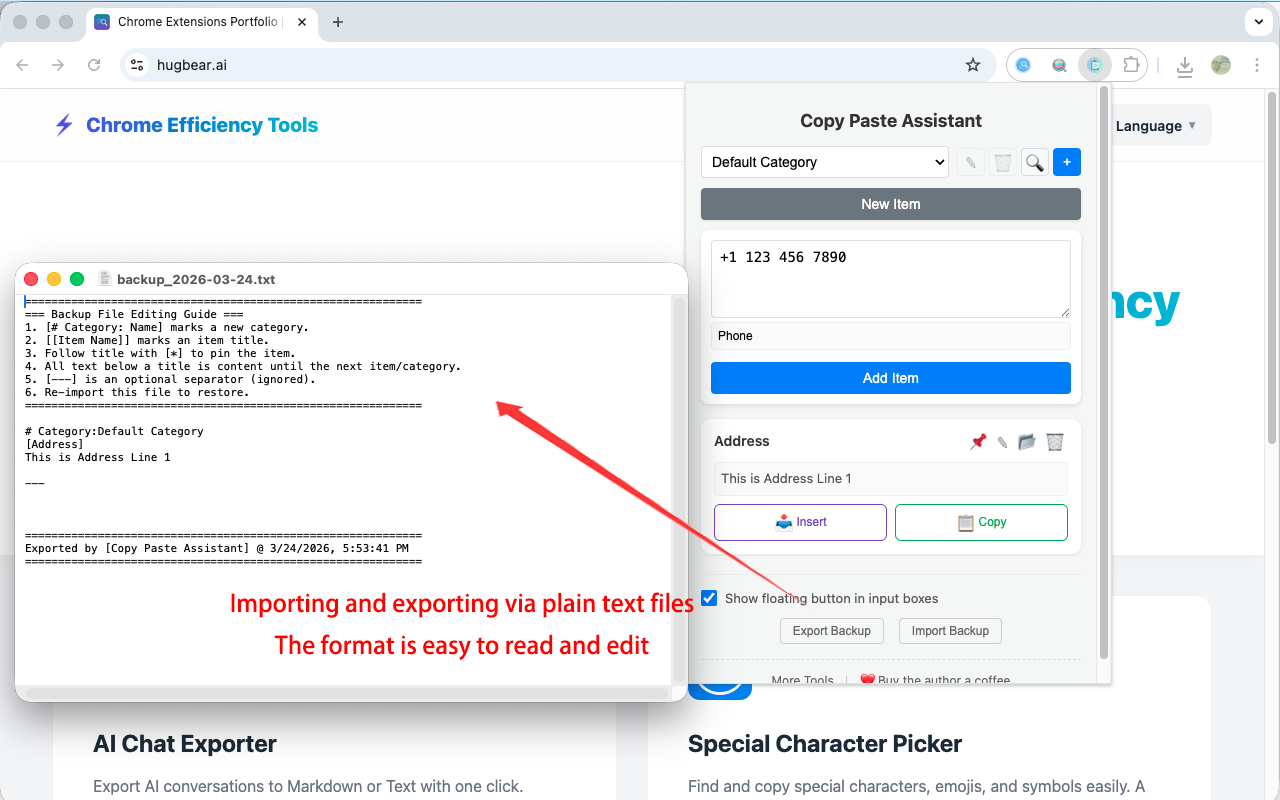
EASY BACKUP

Export and import your snippets as readable text files for easy migration or batch editing.

๐Ÿ› ๏ธ

FRAMEWORK COMPATIBLE

Works perfectly with React, Vue, Angular, and rich text editors using native event simulation.

See it in Action

How to use Copy Paste Assistant - Step 1
How to use Copy Paste Assistant - Step 2
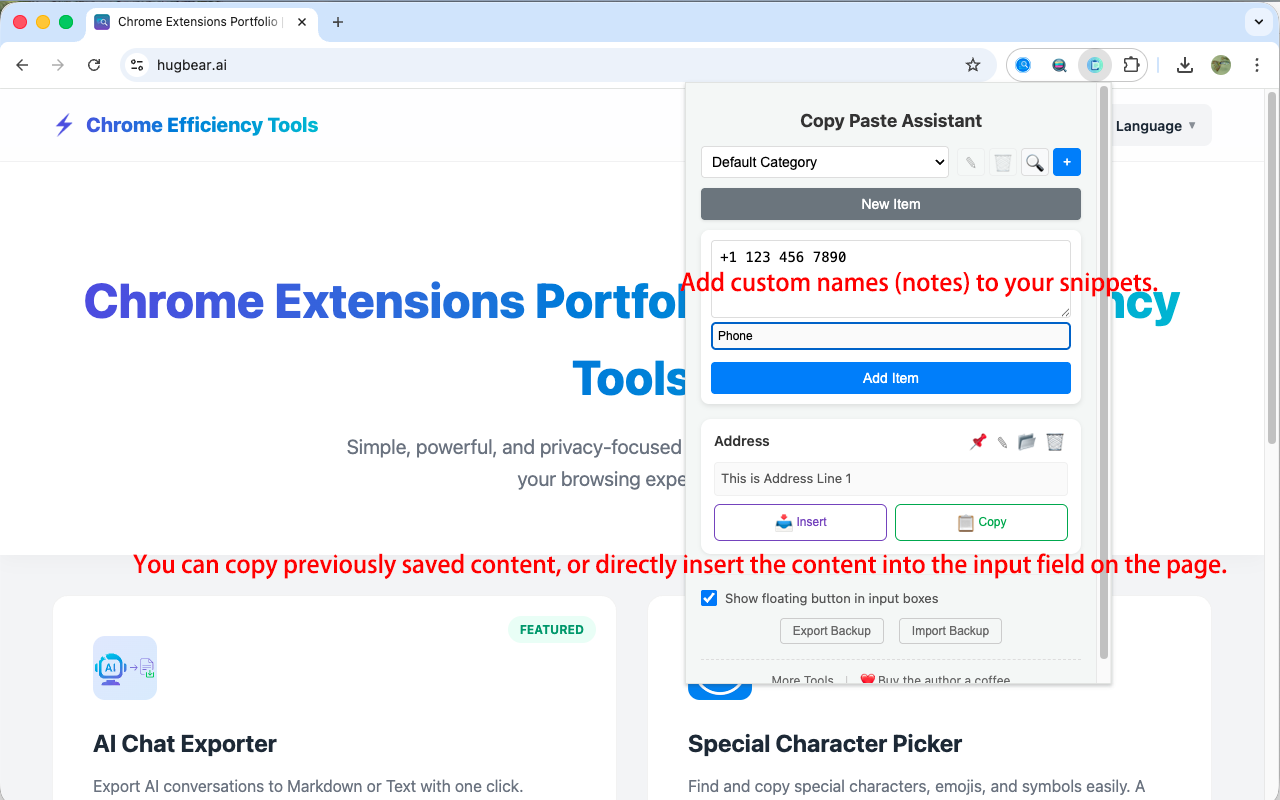
How to use Copy Paste Assistant - Step 3
How to use Copy Paste Assistant - Step 4

How to Use

1

Add Snippets

Click the extension icon to add your first text snippet.

2

Focus Input

Focus on any input field on a webpage.

3

Activate Assistant

Click the floating clipboard icon or right-click to see your snippets.

4

Instant Filling

Select the snippet you want, and it will be filled instantly.

FAQ

Product Introduction

What is Copy Paste Assistant?

Copy Paste Assistant is a lightweight productivity tool designed to help you quickly fill in frequently used text snippets. Whether it's filling out forms, replying to customer emails, or managing development code snippets, it saves you time and reduces repetitive tasks.

How to add my first text snippet?

Click the browser extension icon and select the "Add Snippet" option. You can choose a category for the snippet or save it to the "Default" category. Then, enter the text you want to save and click save.

Getting Started & Privacy

Why does the browser prompt "Read and change website data"? Is it safe?

This is a standard security prompt from the browser. We need this permission to show the "๐Ÿ“‹" icon when you click on an input box and to help you automatically fill in text. We never collect your passwords, bank card numbers, or any private information.

Is it free? Will my text be sent online?

It is completely free and runs entirely locally on your computer. All your text is stored on your own computer and will never be uploaded to any server. You can use it normally even without an internet connection. Additionally, you can export and backup your snippet data anytime in an easy-to-read plain text format for easy migration.

Does it automatically record everything I "copy"?

No. To protect your privacy and keep your list clean, it only saves text when you "manually add" it or use the right-click menu "Add to Assistant". This prevents sensitive information like temporary passwords from being saved accidentally.

How can I quickly save text from a webpage to the assistant?

Simply select the text on the page, right-click and choose "Add to Assistant". The text will be automatically saved to your snippet list for future use.

Daily Usage Tips

How to use the smart floating assistant for quick filling?

When your mouse cursor enters an input box, the floating assistant icon (๐Ÿ“‹) will appear in the bottom right corner. Click this icon to see your recently used text snippets. Select the text you want to fill, and it will be inserted into the input box immediately.

How to manage and organize my snippets?

You can create custom categories through the extension interface to organize and manage your snippets. Each snippet can be given a title for quick identification. You can also pin a category to ensure it's always visible.

What is the "Pin" function for?

For high-frequency information (like tax IDs or addresses), you can click the pin icon (๐Ÿ“Œ). This keeps the item at the top of its category so it won't be pushed down by new content.

How to search for my snippets?

You can use the real-time global search function in the extension. Enter the snippet name or keywords, and the system will highlight matching results to help you quickly find the text you need.

What if the blue "๐Ÿ“‹" icon blocks a button on the webpage?

The icon is designed with high transparency and usually doesn't block content. If it does get in the way, you can click outside the input box to make it disappear; or you can disable the "Floating Assistant" feature in the settings and use only the right-click menu to fill in content.

I changed to a new computer, is my saved data still there?

Since data is stored locally for privacy, it won't sync automatically. If you change computers, please click "Export" in the settings of your old computer to save a backup file, then "Import" it on the new computer to migrate your data.

What happens if I don't give a snippet a name?

The assistant is smart! If you leave the name blank, it will automatically use the first 15 characters of the content as the default name, helping you identify it quickly in the list.

Will I lose snippets if I delete a category?

No. For data safety, when you delete a custom category, all its items are automatically moved to the built-in "Default" category.

Troubleshooting

How is the extension compatible with other websites or apps?

Copy Paste Assistant uses native JavaScript to trigger input events, making it compatible with many popular frameworks (like React, Vue, Angular) and rich text editors, running smoothly in various environments.

Why does the icon not appear on some websites?

For security reasons, browsers prohibit extensions from running on certain special pages (e.g., Chrome Web Store, system settings pages, some bank login pages). It works perfectly on the vast majority of daily work and shopping websites.

The text was filled, but the website says "Content cannot be empty"?

A few very complex websites (e.g., banks or certain online application systems) have special validation. If this happens, after filling the text, click inside the box or press the space bar to let the website know the content has been updated.

Can I recover accidentally deleted content?

The system includes a confirmation dialog when deleting items to prevent accidents. Once confirmed, the data is removed locally. We recommend exporting backups regularly just in case.

Does the extension have a dark mode?

Currently, the extension does not have a dark mode, but this is part of our future development plan and we will add this feature in a future update.

What should I do if I encounter problems or have suggestions?

If you encounter any problems or have suggestions for new features, please feel free to contact the development team through our feedback channels. Your feedback is very important to us.

In the extension management page, it shows "Service Worker inactive". Does this affect usage?

Not at all. Simply put, the Service Worker is like the extension's "background butler." It goes to sleep to save your computer's memory and power when there's no work to do. As soon as you use the extension, it wakes up instantly. The "inactive" status just means it's currently napping, not broken. It doesn't affect any functionality.

Update Log

Open Source

This extension is open source and the code is available on GitHub. Contributions are welcome!

View Source Code on GitHub

Build your toolkit

Check out my other productivity tools for Chrome.

๐Ÿš€
Explore More Extensions