Todo List

A lightweight, beautiful, and fully-featured professional browser extension that helps you stay on top of your daily goals.

Whether you need a quick reminder in the Popup or deep organization in the Dashboard, Todo List provides everything you need to be productive.
Learn More
Todo List

Key Features

Dual-Mode Design

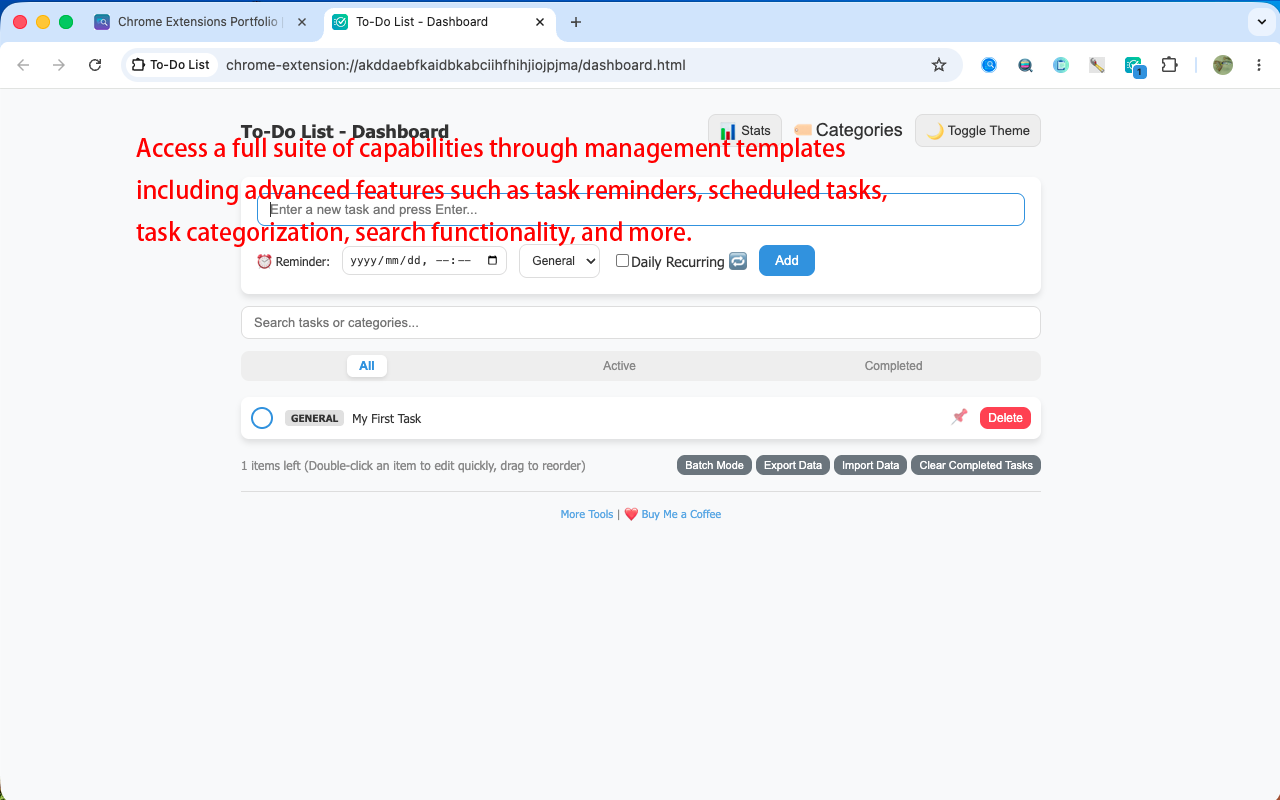
Quick Popup for instant ideas and a full-screen Dashboard for immersive management with advanced filtering.

🔢

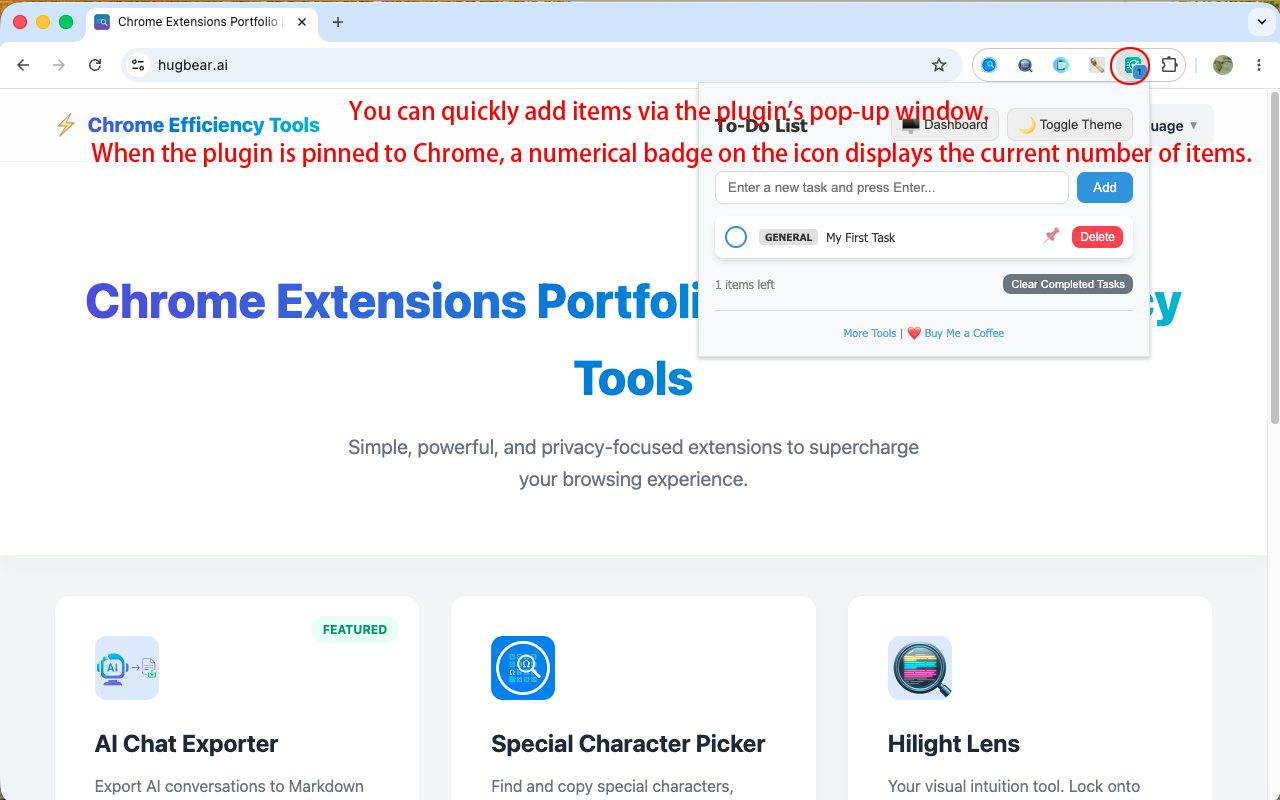
Badge Counter

Displays the real-time count of pending tasks directly on the extension icon in the Chrome toolbar for quick awareness.

📊

Deep Statistics Dashboard

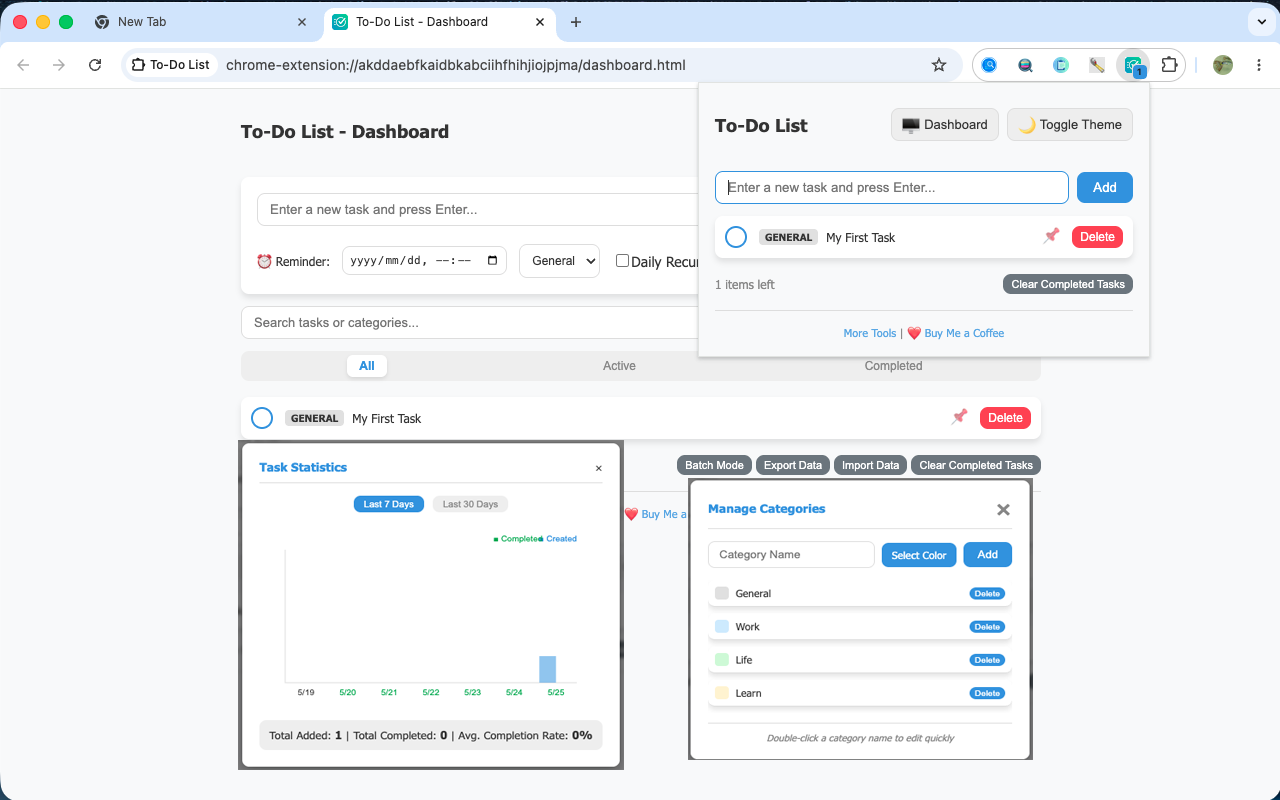
Visualize task completion trends and category distribution to track your progress scientifically.

🏆

Milestone Incentive System

Celebrate achievements like total tasks completed and consecutive days used with rewarding popups.

📅

Daily Recurring Tasks

Mark daily routines that automatically reset every day, saving you from repetitive input.

Smart Deadline & Reminders

Set specific times for tasks and receive system-level notifications even when the extension is closed.

🖱️

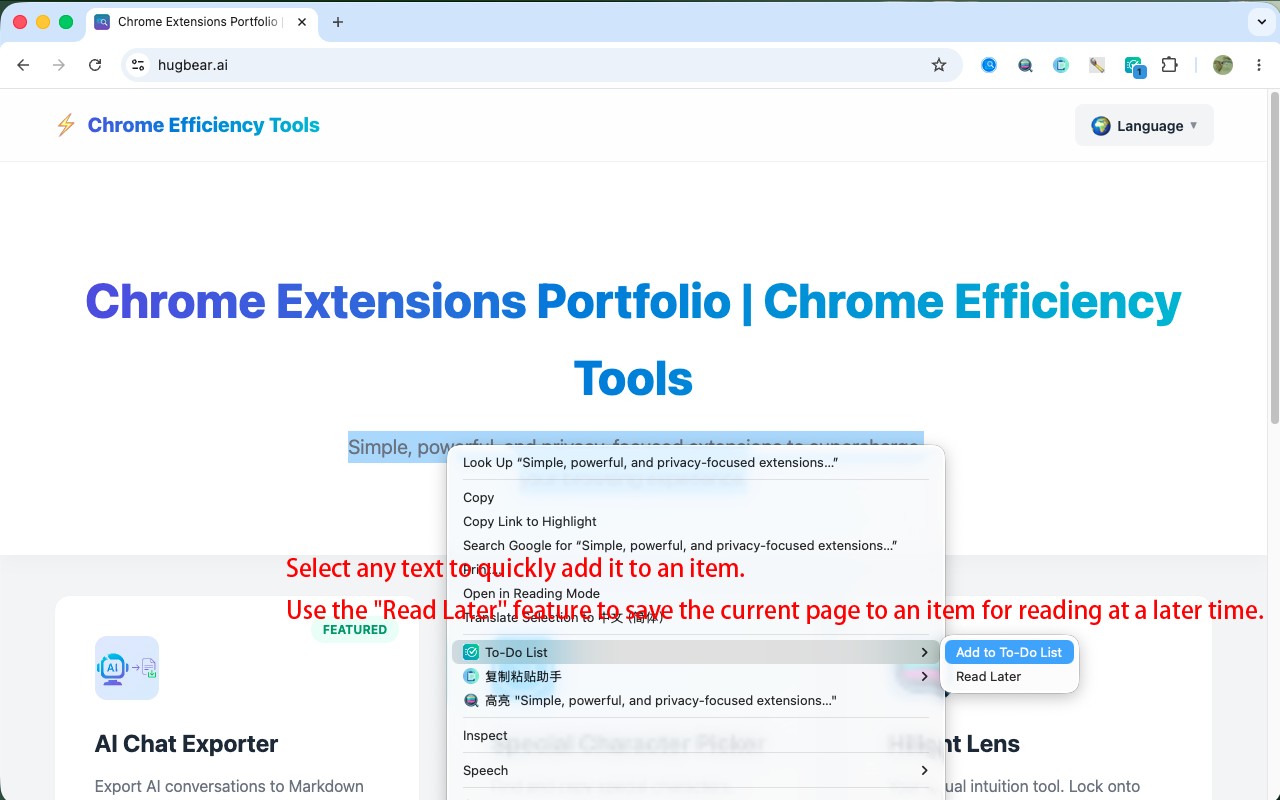
Quick Add via Context Menu

Right-click selected text on any webpage to instantly add it as a new task without switching windows.

📑

Save Page for Later

Right-click anywhere on a page to save the current URL as a task. Tasks automatically include a 🔗 link to return to the original page.

🏷️

Flexible Category Management

Customize category names and color labels to prioritize tasks and keep your list organized.

📦

Batch Operations & Search

Manage multiple tasks at once and use keywords to find tasks or categories instantly.

📍

Drag-and-Drop & Pinning

Freely reorder tasks by dragging and pin important items to the top of your view.

🎨

Perfect Dark Mode

Automatically switches with your system theme or manual toggle, with optimized CSS for comfortable reading.

💾

Data Backup & Privacy

Local storage ensures your privacy, with JSON export and import for full control over your data.

See it in Action

Todo List Dashboard Mode - Overview
Quick task entry via Popup
Productivity statistics and trends
Milestone achievement system

How to Use

1

Quick Add

Click the extension icon, type your task, and press Enter to save instantly.

2

Right-click Quick Add

Select text on any webpage, right-click and choose 'Add to Todo List' to save it as a task.

3

Save Page for Later

Right-click anywhere on a page and select 'Read Later' to save the current URL for future visit.

4

Manage in Dashboard

Click the 'Dashboard' icon in the Popup to enter full-screen management mode.

5

Analyze & Backup

Track your progress in the Statistics tab and backup your data via Settings.

FAQ

Getting Started: Quick Setup & Core Focus

How does this extension differ from standard to-do list apps?

Its primary focus is on 'task workflows within the browser environment.' Compared to traditional to-do apps, it places greater emphasis on effortless note-taking, instant capturing, and seamless integration while you are browsing the web—serving as your highly efficient assistant right inside the browser.

How should I get started?

We recommend starting with the simplest workflow: click the extension icon, type in your task, press Enter, and simply check the box once it's done. Once this becomes a habit, you can gradually explore advanced features such as categorization, reminders, and 'read-it-later' options.

I don't like complicated tools; will this be difficult to learn?

Not at all. Its basic operations consist merely of 'adding, checking off, and deleting' tasks. You can explore the advanced features as needed, without any mandatory learning curve or pressure.

Why are there two separate interfaces: the 'Popup' and the 'Dashboard'?

This design aims to strike a balance between efficiency and depth. The Popup interface is ideal for quick, fragmented tasks—such as jotting down notes, glancing at your list, or checking off completed items on the fly. The full-screen Dashboard, on the other hand, is designed for more systematic organization, batch operations, category filtering, and annual reviews.

Is this extension completely free? Will there be any ads?

This extension is currently a completely free personal project. We are dedicated to providing a clean, highly efficient user experience and will never insert any advertisements or introduce paid features.

Is there a limit on the number of tasks I can add?

Under normal usage scenarios, there is no practical limit. Even if you accumulate a large number of tasks, the extension is designed to remain responsive and perform smoothly.

Feature Deep Dive: Categorization, Search, and Advanced Organization

What is the purpose of the categorization feature?

Categorization is the core of task organization; it is ideal for segmenting tasks based on project management, work/study distinctions, priority levels, or specific contexts.

Can I set task priorities?

Currently, priorities can be indicated through category colors, the 'Pin to Top' feature, and sorting options. In the future, we plan to introduce intuitive High/Medium/Low priority labels as well as a Four-Quadrant (Eisenhower Matrix) mode.

What is the difference between 'Pin to Top' and 'Drag-and-Drop Sorting'?

The 'Pin to Top' feature allows you to permanently fix important items at the very top of your list, whereas 'Drag-and-Drop Sorting' is used to adjust the relative order of standard tasks.

What does the search function cover?

It supports real-time fuzzy search, covering both the content of the tasks themselves and the names of the categories.

Why is 'Read Later' different from standard bookmarks?

Browser bookmarks are better suited for long-term web archiving, whereas 'Read Later' focuses on recent web pages that require immediate action—treating them as tasks—to help you easily return to the content whenever you're ready.

Does the 'Read Later' feature save web page content offline?

To keep the tool lightweight and respect user privacy, this feature currently saves only the page title and URL link; it does not save the full text of the web page offline.

What should I do if the original web page can no longer be opened?

If the original website has been deleted or the link has become invalid, the extension will be unable to retrieve the content. We recommend that you organize or archive any important information separately.

Can the tool automatically fetch the web page title?

This feature is not currently supported.

Can I set a recurring schedule for reminders?

Currently, daily recurring reminders are supported. Weekly, monthly, and more flexible custom recurrence options are all included in our future development roadmap.

Privacy & Security, Backup & Data Synchronization

Where is my task data stored? Can the developers see it?

All of your data is stored locally within `chrome.storage.local`. The extension does not connect to any cloud storage services; we are completely unable to access or view the content of your tasks, ensuring that your privacy remains entirely under your control.

How do I migrate my data after switching computers or reinstalling my browser?

You can save your tasks as a JSON file by selecting 'Export Data' in the Management Center. Once you have installed the extension in your new environment, simply click 'Import Data' to perform a seamless migration.

Can I recover my data if my browser crashes or data is lost?

Since your data is stored locally, we recommend developing a habit of regularly exporting JSON backups. We plan to add a 'Recycle Bin' feature in the future.

Does it support offline use?

Yes. Since all data is stored locally, the extension functions normally even when you are offline.

Why is there no account system?

We adhere to the philosophy of 'no login required—just open and use.' To maximize simplicity and privacy protection, we have chosen not to introduce a complex account system at this time.

Will cloud synchronization be supported in the future?

Support for multi-device cloud synchronization is already on our roadmap. Please stay tuned for future updates.

Can I sync my data to my mobile phone?

Currently, the extension is supported only within the Chrome environment. We are actively exploring synchronization solutions for mobile devices.

Troubleshooting & FAQ

Why does drag-and-drop sorting sometimes not work?

The drag-and-drop sorting feature currently only works within the 'All' view. In specific category views, tasks may be subject to automatic sorting logic; we recommend switching back to the 'All' view to perform sorting.

What should I do if the extension badge count isn't updating?

Please verify that 'Badge Counting' permissions are enabled in your settings. If you experience a display delay, closing and restarting your browser will usually resolve the issue.

Are completed tasks automatically cleared?

You need to clear them manually; this allows you to review your completed progress whenever you wish.

Why are permissions for context menus and notifications required?

Context menu permissions are required to enable features such as 'Quick Add Selected Text' and 'Save for Later'; notification permissions are necessary for the system to deliver reminders and alerts.

Why does the extension interface look so simple?

Our core design philosophy is 'Simple by default, advanced when needed.' We aim to provide powerful management capabilities through hidden menus while maintaining zero learning curve for the user.

Update Log

Open Source

This extension is open source and the code is available on GitHub. Contributions are welcome!

View Source Code on GitHub

Build your toolkit

Check out my other productivity tools for Chrome.

🚀
Explore More Extensions