Smart Region Screenshot is a powerful, lightweight browser extension designed to redefine how you capture, extract, and share web content. Whether you need to save a precise portion of a complex webpage, convert desktop content into a clean mobile-friendly layout, or embed smart source metadata footers for reference, Smart Region Screenshot delivers a seamless, distraction-free clipping experience right inside your browser.
This is not merely a static screen snapper, but an intelligent web extraction tool. Powered by high-DPI canvas rendering and a smart DOM reformatting engine, it allows you to drag-select any web region with real-time coordinate feedback, strip away bulky desktop layout constraints, and export crisp, annotated PNG images. Whether you are a researcher, designer, developer, student, or content creator, Smart Region Screenshot helps you preserve web context and share information effortlessly.
Enjoy an intuitive semi-transparent overlay with real-time dimension badges (W x H) during mouse dragging. Easily cancel selection anytime by pressing the ESC key.
Converts desktop layouts into neat mobile-friendly single-column cards (375px view). Intelligently filters out irrelevant background elements without horizontal overflow.
Leverages HTML5 Canvas 2D rendering adapted to device pixel ratios (DPR), ensuring every saved image remains ultra-sharp on Retina and high-resolution screens.
Flexible save dialog options let you choose whether to include page titles, source URLs, tool attribution, or timestamps—making screenshots instantly verifiable.
Built inside Shadow DOM to guarantee zero CSS or JavaScript conflict with host web pages. Automatically detects system-restricted pages with warning dialogs.
Trigger capture instantly through the extension toolbar popup or via right-click context menu shortcuts for both Direct Screenshot and Mobile Reformat modes.
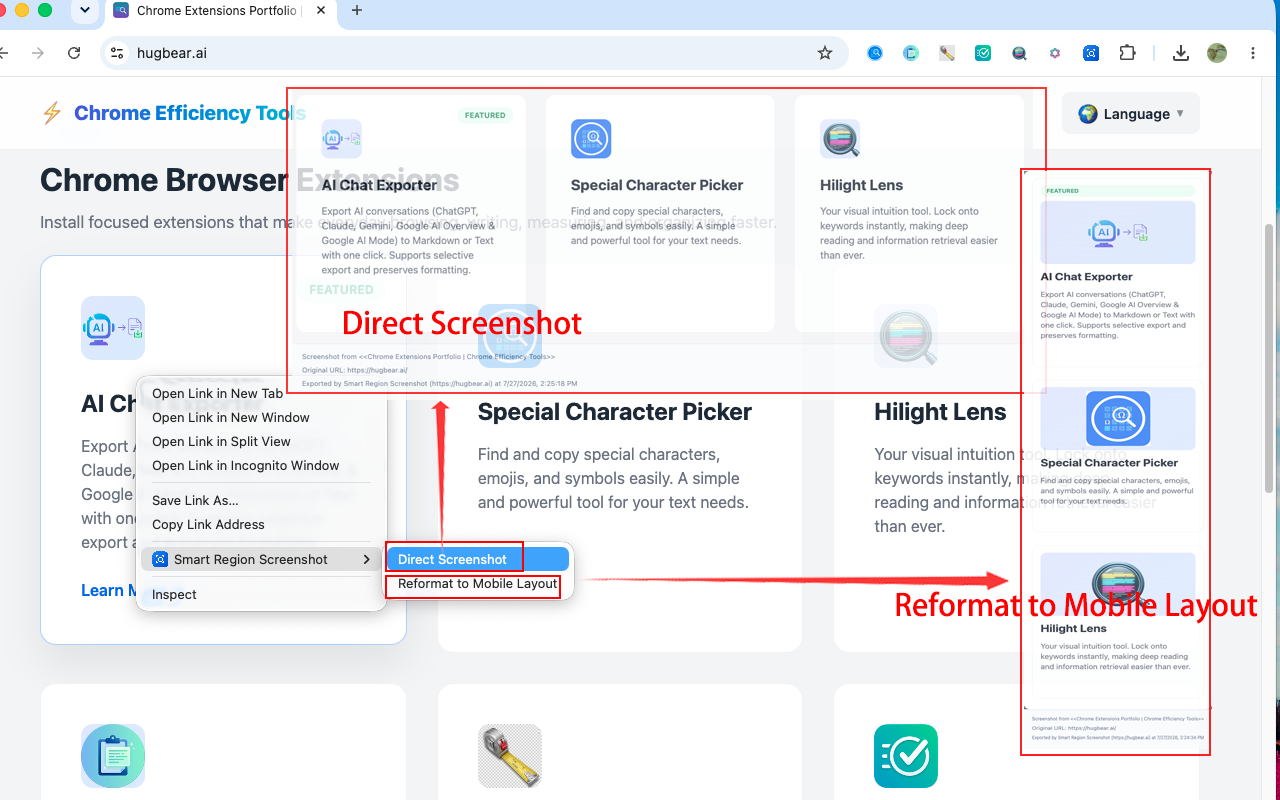
Click the extension icon in your browser toolbar, or right-click anywhere on the webpage and select "Direct Screenshot" or "Reformat to Mobile Layout".
Click and drag your mouse over the desired webpage content. Check the real-time dimension tag for size accuracy. Press ESC anytime to cancel.
In the pop-up modal, customize your file name and toggle metadata footers (Source Page Title, Original URL, Tool Attribution & Timestamp).
Click "Confirm" or press Enter to download the cropped high-resolution PNG image directly to your local downloads folder.
Smart Region Screenshot helps you capture any part of a webpage as a high-quality image. Besides taking regular screenshots, it can also automatically reformat desktop webpages into a clean mobile-friendly layout, making them easier to read and share.
Built-in screenshot tools capture exactly what's on your screen. Smart Region Screenshot is designed specifically for webpages. It lets you precisely select content, optionally reformat it into a clean mobile layout, and add useful source information such as the page title, URL, and capture time. It's especially helpful for research, documentation, note-taking, and sharing webpage content.
Direct Screenshot captures the webpage exactly as you see it.
Mobile Reformat reorganizes the selected content into a clean, single-column mobile layout for easier reading and sharing.
Mobile Reformat automatically rearranges desktop webpage content into a clean mobile-friendly layout. Instead of wide multi-column pages, the exported image becomes a simple vertical layout that's much easier to read on phones.
In most cases, Mobile Reformat provides a better reading experience on mobile devices because it removes wide desktop layouts and presents content in a single column.
Choose Direct Screenshot when the webpage's visual layout matters, such as dashboards, tables, charts, design mockups, presentations, or any content where the original appearance should be preserved.
Click the extension icon (or use the right-click menu), choose a capture mode, drag to select the area you want, then confirm to save the image.
Smart Region Screenshot is designed to capture exactly the part of the webpage you need. This gives you more control and avoids including unnecessary content.
Yes. Press Esc at any time before confirming to cancel the current selection.
Smart Region Screenshot works in Google Chrome and most Chromium-based browsers that support Chrome extensions.
Yes. If the webpage was already open before installation, refresh it once so Smart Region Screenshot can load correctly.
Most websites are supported. However, browser-protected pages, such as the Chrome Web Store and `chrome://` pages, cannot be captured due to browser security restrictions.
Smart Region Screenshot captures only the area you select. If you need more content, simply select a larger region.
Not yet. Full-page scrolling capture is planned for a future update.
Currently, you can capture any visible portion of a webpage. Automatic scrolling capture is not available yet.
Yes. Simply start a new selection before confirming the screenshot.
If you're using Mobile Reformat, this is expected. The content is rearranged into a mobile-friendly layout before being exported. If you're using Direct Screenshot, the exported image should match what you see on the screen.
Yes. You can capture the current frame of a video, but Smart Region Screenshot does not record video.
Some temporary interface elements disappear automatically when the webpage loses focus or begins rendering. As a result, they may not appear in the exported image.
Yes, in most cases. PDF documents opened in Chrome can usually be captured just like normal webpages.
No. Only content that is currently visible in the browser window can be captured.
No. Each screenshot captures one continuous selected region.
It extracts the selected webpage content and reorganizes it into a clean, mobile-friendly layout before creating the screenshot.
This is expected. Mobile Reformat rearranges desktop layouts into a simpler single-column format, making the content easier to read on smaller screens.
No. The original webpage is never modified. Smart Region Screenshot only creates a temporary layout for generating the exported image.
Mobile Reformat works especially well for articles, blogs, documentation, tutorials, and other text-focused webpages.
Highly interactive webpages, such as dashboards, maps, games, and video players, may not reformat as expected.
Not yet. The current version uses a fixed mobile-friendly width that is optimized for readability.
Screenshots are downloaded to your browser's default download folder.
Yes. You can enter a custom filename before exporting the image.
Metadata Footers are optional information displayed at the bottom of the image, such as the webpage title, source URL, export time, and tool name.
Yes. Simply disable the footer options before exporting.
Smart Region Screenshot exports images in high resolution to keep text and graphics sharp, even on high-density displays.
Not at the moment. The current version exports images as PNG files only.
Not in the current version. Smart Region Screenshot automatically exports images using high-quality settings.
No. Everything is processed locally in your browser. Your screenshots are never uploaded to external servers.
Smart Region Screenshot needs access to the current webpage so it can capture the content you select and generate the exported image.
No. Smart Region Screenshot does not track or collect your browsing history.
Yes. If Smart Region Screenshot is allowed to run on the page, it works the same way as on public websites. All processing remains local to your browser.
Yes. Simply enable Allow in Incognito in your browser's extension settings.
Yes. Most capture features work without an Internet connection, as long as the webpage is already available in your browser.
Chrome blocks all extensions from accessing certain protected pages for security reasons. This limitation applies to all screenshot extensions.
Try refreshing the webpage first. If the problem persists, reload Smart Region Screenshot from your browser's Extensions page or restart the browser.
Make sure the webpage has finished loading, then try again. If the page was already open before installing Smart Region Screenshot, refresh it first.
Check whether your browser is blocking downloads and make sure your default download folder is available.
Some websites restrict how protected media can be rendered or captured. In these cases, certain content may not appear in the exported image.
This can happen on protected webpages or websites that restrict content capture. Try refreshing the page or testing on a different website.
🎉 v1.0.0 INITIAL RELEASE: SMART REGION SCREENSHOT
-----------------------------------
Full suite of smart region capture and mobile layout reformatting features now available:
✨ Direct Region Screenshot with pixel-perfect drag selection and real-time dimension tags.
✨ Intelligent DOM Mobile Reformatting to clean 375px single-column view.
✨ High-DPI Retina canvas rendering for ultra-sharp PNG exports.
✨ Custom filename and metadata footers (Title, Source URL, Attribution & Timestamp).
✨ Shadow DOM style isolation and right-click context menu integration.
This extension is open source and the code is available on GitHub. Contributions are welcome!
View Source Code on GitHub