AI Chat Exporter

Save and Export Your AI Conversations

Save, organize, and export your AI conversations from ChatGPT, Claude, Gemini, Google AI Overview, and Google AI Mode to Markdown or text.

AI conversations often contain valuable research, ideas, code, notes, and answers. AI Chat Exporter helps you keep them accessible by exporting conversations into clean Markdown or text files with just a few clicks.

Whether you are building a personal knowledge base, organizing study notes, saving research, or collecting creative ideas, AI Chat Exporter makes it easy to preserve your AI conversations.
AI Chat Exporter

Key Features

🌐

Multi-platform AI Chat Export

Works with:
• ChatGPT
• Claude
• Gemini
• Google AI Overview
• Google AI Mode
Keep conversations from different AI platforms in one organized workflow.

📄

Flexible Export Options

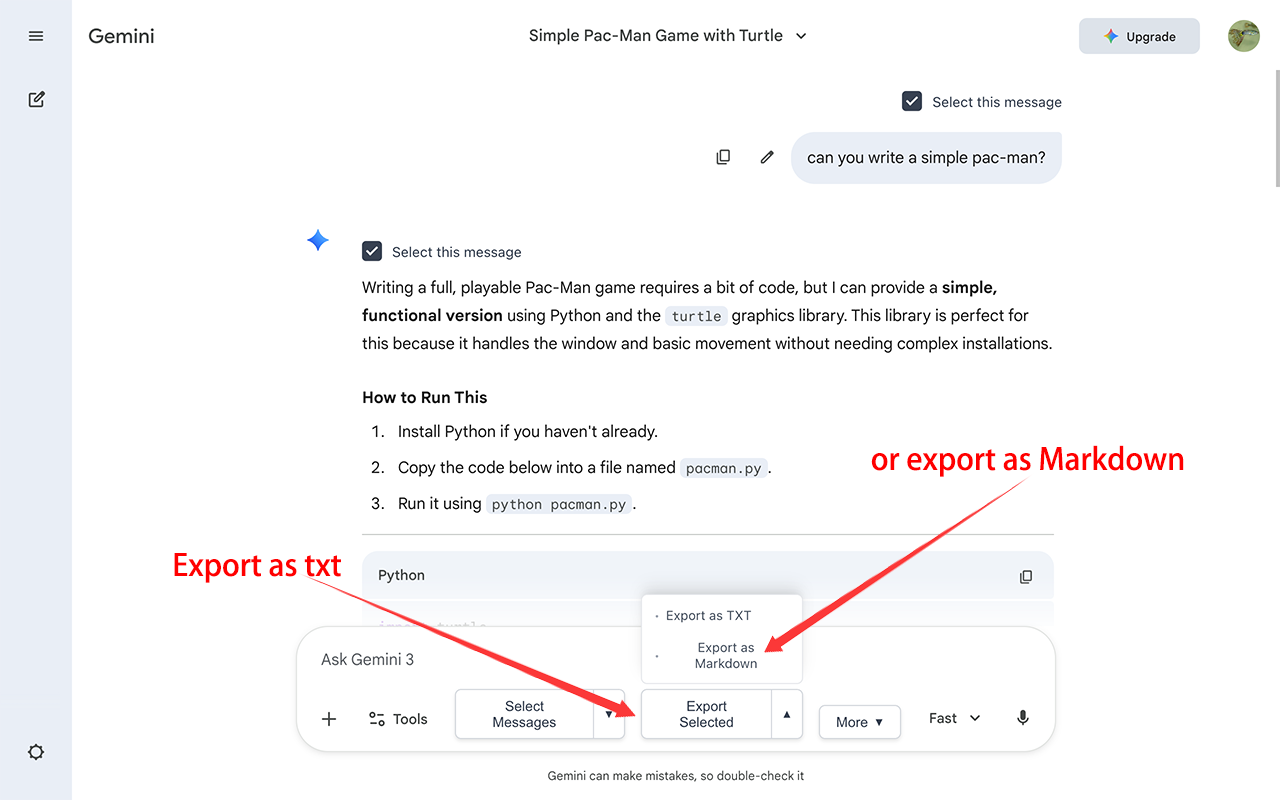
Export AI conversations as:
• Markdown (.md)
• Text (.txt)
Perfect for storing notes, documentation, research, and personal archives.

🎯

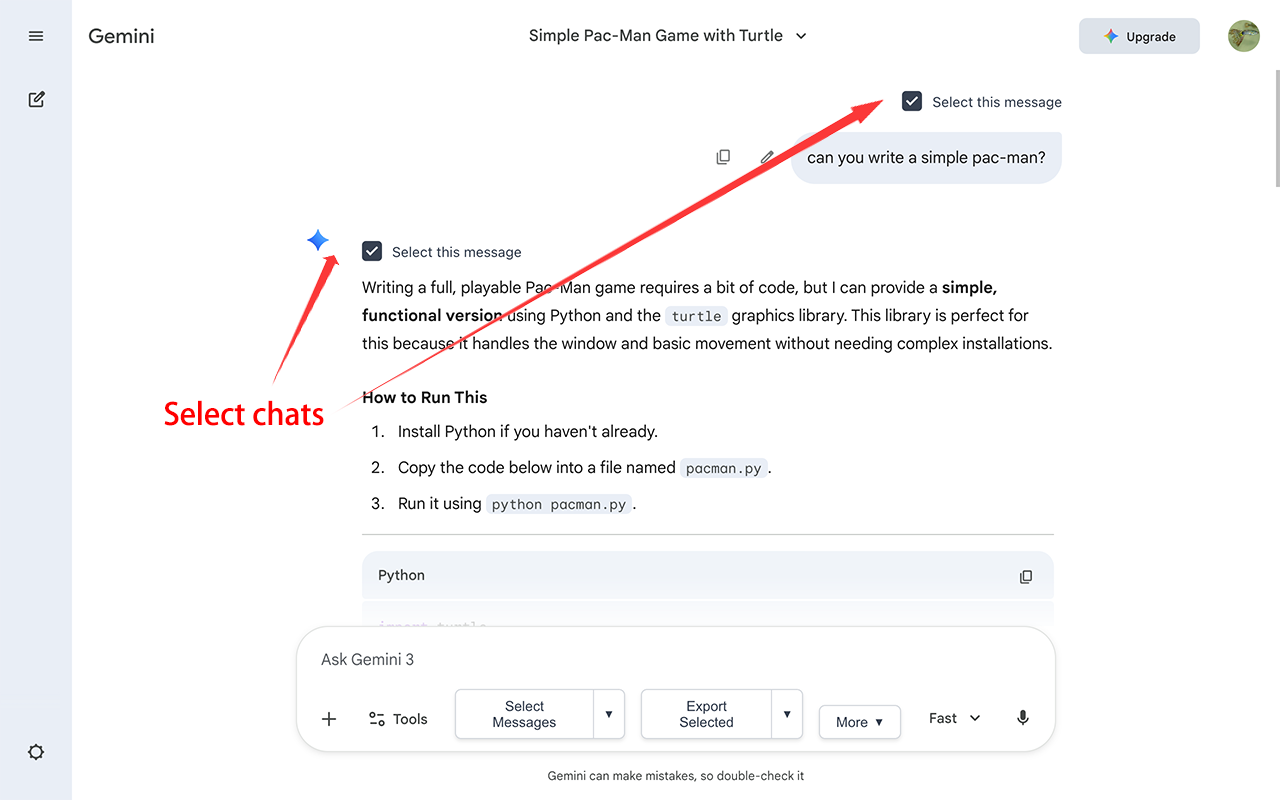
Selective Export

Don't export everything.
Choose the specific messages you want to save and create a clean version of the conversation.

📝

Preserve Formatting

Keep important content readable:
• Code blocks
• Tables
• Lists
• Headings
• Mathematical formulas (LaTeX)
Your exported conversations stay organized and easy to reuse.

📋

Smart Copy

Copy AI conversations directly into your favorite apps:
• Notion
• Obsidian
• Google Docs
• Microsoft Word
• Other note-taking tools

🖼️

Save AI-Generated Images

Save images generated in supported AI conversations and keep them together with your exported content. The best way to preserve your visual creativity forever.

🏷️

Smart Organization

Automatically create meaningful filenames based on conversation titles, making your exported files easier to find later.

🔒

Privacy First

Your conversations are processed directly in your browser.
Your chat content is not uploaded to our servers.

See it in Action

Save AI Conversations in One Click
Export Only What You Need
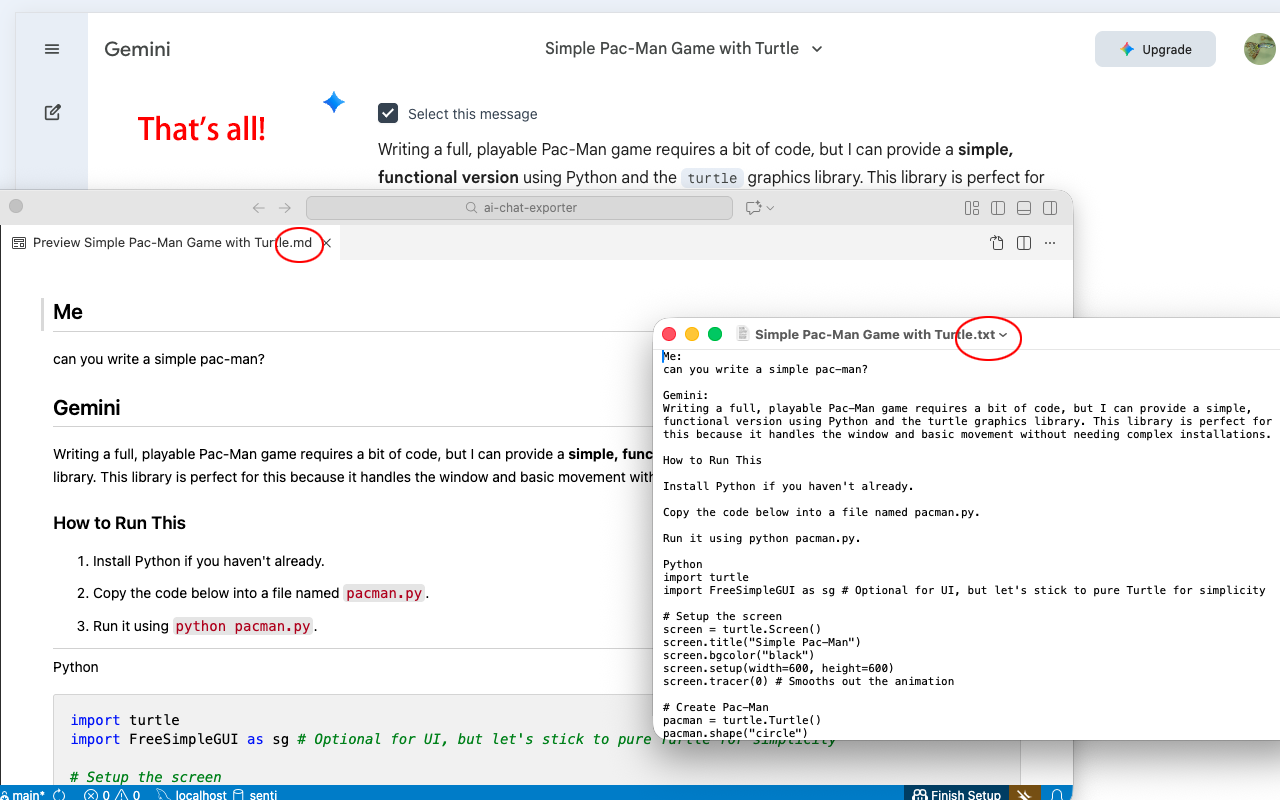
Support Markdown & Plain Text, Keep Your Formatting
Turn AI Chats into Your Knowledge Base

How to Use

1

Open Chat

Open any chat on ChatGPT, Claude, or Gemini.

2

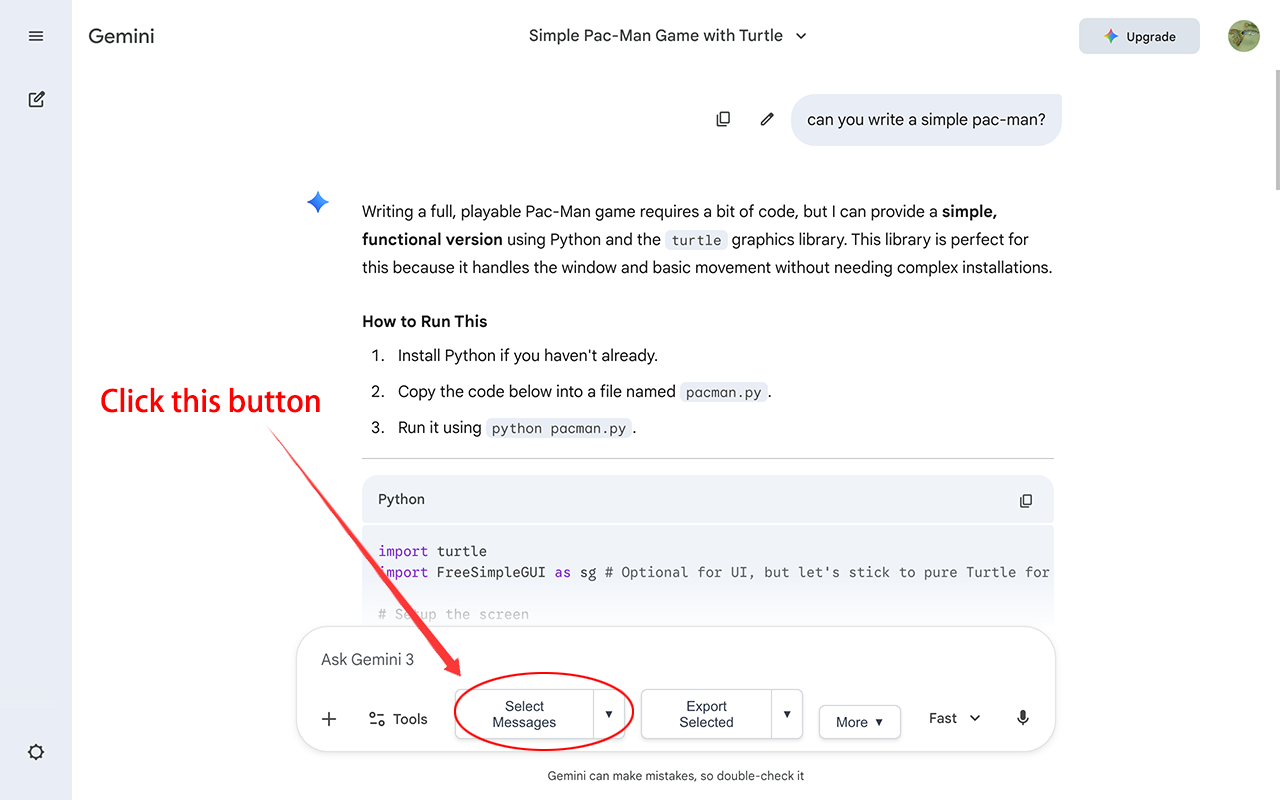
Activate

Click the extension icon or the "Select" button on the page.

3

Select Messages

Choose the messages you want to export.

4

Export or Copy

Use "Smart Copy" to paste into Notion/Word, or click "Export" to download files instantly.

FAQ

Supported AI Platforms

Which AI platforms does AI Chat Exporter support?

AI Chat Exporter supports exporting conversations from:
• ChatGPT
• Claude
• Gemini
• Google AI Overview
• Google AI Mode
You can save conversations from different AI platforms using the same export workflow.

How do I export ChatGPT conversations?

Open a ChatGPT conversation, click the AI Chat Exporter button, select the messages you want to save, and export them as Markdown or text.
You can preserve formatting, code blocks, tables, lists, and other important content.

How do I save Google AI Mode conversations?

Open your Google AI Mode conversation, then use AI Chat Exporter to select and save the content you want to keep.
You can export Google AI Mode conversations as Markdown or text for later reference.

Does AI Chat Exporter support Claude and Gemini?

Yes.
AI Chat Exporter supports conversations from Claude and Gemini, allowing you to organize AI conversations from multiple platforms in one workflow.

Export & Organization Features

What export formats does AI Chat Exporter support?

AI Chat Exporter supports:
• Markdown (.md)
• Text (.txt)
Markdown is useful for knowledge management tools such as Notion and Obsidian because it preserves structure and formatting.

Can I export AI conversations for Notion or Obsidian?

Yes.
Markdown exports are designed to work well with note-taking and knowledge management tools, including Notion, Obsidian, Google Docs, and other Markdown-compatible applications.

What is the difference between Markdown export and Smart Copy?

Markdown Export creates a file that you can save, archive, and manage later.
Smart Copy copies the conversation content directly to your clipboard, making it convenient when you want to paste it into another application immediately.

Can I save only specific messages instead of the entire conversation?

Yes.
AI Chat Exporter allows you to select specific messages before exporting, so you can create a cleaner version of a conversation without unnecessary content.

How does AI Chat Exporter preserve formatting?

AI Chat Exporter keeps important conversation elements such as:
• Code blocks
• Tables
• Lists
• Headings
• Mathematical formulas (LaTeX)
This helps exported conversations remain readable and useful.

How can I save images generated by AI?

AI Chat Exporter can help save AI-generated images from supported conversations and keep them together with your exported AI content.

Can AI Chat Exporter create screenshots of AI conversations?

Yes.
AI Chat Exporter supports creating long images of conversations for sharing or archiving.
For the best image quality, use the recommended image settings and avoid excessive compression when sharing.

Can I export all my AI chat conversation history at once?

AI Chat Exporter is designed for exporting individual conversations.
Bulk export availability depends on the AI platform and how it provides access to conversation history.

Privacy & Permissions

Is AI Chat Exporter safe to use?

Yes.
AI Chat Exporter is designed to process your conversations directly in your browser.
Your chat content is not uploaded to our servers.

Are my AI conversations uploaded anywhere?

No.
Your conversation data is processed locally in your browser. AI Chat Exporter does not send your chat content to external servers.

Why does AI Chat Exporter require "Read and change all your data on the websites you visit" permission?

This permission is required because the extension needs access to supported AI websites in order to:
• Detect conversations
• Add export controls
• Read the content you choose to export
Chrome requires extensions that modify or interact with webpage content to request this permission.

Compatibility & Availability

Is AI Chat Exporter completely free to use?

AI Chat Exporter provides free access to its core export features.
Some advanced features may depend on the current version and release plan.

Does AI Chat Exporter work on Microsoft Edge or other browsers?

AI Chat Exporter is built for Chromium-based browsers.
It may work on browsers such as:
• Microsoft Edge
• Other Chromium-based browsers
Availability may depend on browser compatibility and extension support.

Troubleshooting

Why doesn't the Export button appear?

Try these steps:
• Refresh the AI website page.
• Make sure the extension is enabled.
• Check that you are using a supported AI platform.
• Update the extension to the latest version.

Why can't I see the Select button on ChatGPT or Claude?

The Select button appears only on supported pages and conversations.
Try:
• Reloading the page
• Opening a normal conversation page
• Checking that the extension has permission to access the website

I clicked Export, but no file was downloaded. What happened?

Check:
• Your browser download settings
• Whether downloads are blocked
• Whether the browser has permission to save files
•You can also try refreshing the page and exporting again.

Why does the exported Markdown file look messy when I open it?

Markdown files are plain text documents designed to be displayed by Markdown-compatible applications.
For the best experience, open .md files with:
• Obsidian
• VS Code
• Typora
• Other Markdown editors

Is it a bug if code blocks or tables look different after export?

Some applications display Markdown differently.
AI Chat Exporter preserves the Markdown structure, but the final appearance depends on the application used to open the exported file.

Update Log

Open Source

This extension is open source and the code is available on GitHub. Contributions are welcome!

View Source Code on GitHub

Build your toolkit

Check out my other productivity tools for Chrome.

🚀
Explore More Extensions