How to Save and Export AI Conversations: ChatGPT, Claude & Gemini
AI conversations can be surprisingly useful. You might plan a trip with ChatGPT, compare products with Claude, learn a difficult topic with Gemini, or work through a problem with an AI assistant.
But what happens when you need that information again a few weeks later?
You may remember the answer but not which AI assistant gave it to you. You may remember discussing a particular idea but have trouble finding the right conversation. Or perhaps you want to keep only a few useful messages instead of downloading your entire chat history.
The good news is that you have several ways to save AI conversations. You can download your account data, copy individual answers, save conversations as files, or use a browser extension to export only the messages you want.
This guide explains the different methods, compares file formats, and shows how to build a simple system for keeping the AI conversations worth revisiting.
Short answer: ChatGPT, Claude, and Gemini all provide official ways to export account data. However, these exports are designed for backups rather than everyday reading and organization. If you want to save selected messages as readable Markdown, TXT, or HTML files, you can use a manual method or a browser extension such as AI Chat Exporter, which we built for this purpose.
Jump to:
- Why Save Your AI Conversations?
- How to Export ChatGPT, Claude, and Gemini History
- Full Backups vs. Selective Exports
- Other Ways to Save a Single Conversation
- Which File Format Should You Use?
- Organize AI Conversations with Notion or Obsidian
- Bring Conversations from Different AI Platforms Together
- AI Chat Exporter: Save Selected Messages
- A Practical Workflow
- Frequently Asked Questions
Disclosure: We are the developers of AI Chat Exporter, the browser extension featured in this guide. The explanations of official platform exports are independent of our product, and you can follow those instructions whether or not you use the extension. Try AI Chat Exporter for Chrome
Why Save Your AI Conversations?
Not every AI conversation needs to be saved.
If you ask for a quick calculation, check the weather, or look up a one-time fact, there may be no reason to keep the conversation.
But other conversations contain information that can be useful long after you close the tab.
Think about the kinds of things people ask AI assistants to help with:
Travel planning
You might spend an evening asking an AI assistant to plan a trip.
The conversation could include:
- A suggested itinerary for a week in Japan.
- Comparisons between different neighborhoods or hotels.
- Transportation options and estimated travel times.
- Restaurant suggestions and local attractions.
- Adjustments based on your budget or travel preferences.
You probably won't need every message. But the final itinerary, useful comparisons, and decisions may be worth keeping.
When you plan another trip, you can revisit what worked, reuse your own notes, or compare the new destination with a previous one.
Shopping and everyday decisions
AI assistants are also useful when making decisions.
For example, you might ask for help comparing laptops, choosing a camera, selecting home appliances, or understanding the differences between several products.
A conversation may contain:
- A comparison table.
- Explanations of technical specifications.
- Advantages and disadvantages of different options.
- Questions you hadn't thought to ask.
- The reasoning behind your final decision.
The product you eventually choose is only part of the story. Sometimes the comparison itself is the most valuable thing to keep.
Work and communication
AI conversations can also become useful working material.
You might use an assistant to:
- Draft or improve an important email.
- Prepare a presentation.
- Outline a report.
- Brainstorm ideas for a project.
- Rewrite a document for a different audience.
- Develop a plan for a meeting or a new initiative.
A useful writing approach or a well-structured outline may be worth reusing in future work.
Instead of starting from a blank page every time, you can refer to previous conversations and adapt what already worked.
Learning and personal interests
AI assistants are increasingly used as personal tutors and learning companions.
You might ask them to explain a historical event, introduce a scientific concept, help you practice a foreign language, or break down a complicated subject into simpler steps.
Sometimes an explanation is especially clear. You finally understand something that previously seemed confusing.
That is worth keeping.
A collection of explanations, examples, and questions can gradually become a personal learning resource.
Technical work and research
For more specialized tasks, conversations may contain even more detailed material:
- Code examples and debugging solutions.
- Database queries and configuration notes.
- Mathematical explanations and formulas.
- Research summaries and comparisons.
- Experiments, assumptions, and troubleshooting steps.
These conversations can take considerable time to reproduce. Saving the relevant parts can prevent repeated work.
The common problem
All these examples have something in common: the useful information is mixed into a much longer conversation.
A single chat might contain an initial question, several corrections, alternative suggestions, follow-up questions, and a final answer. You may want to keep only a small part of it.
And because conversations are scattered across ChatGPT, Claude, Gemini, and other services, finding something later can become difficult.
A simple rule helps:
If a conversation contains something you may want to find, reuse, or refer to again, consider saving it.
You don't need to archive everything. Just keep the information that matters.
How to Export Your AI Conversation History (Official Methods)
ChatGPT, Claude, and Gemini all provide official ways to download your data.
These methods are useful when you want a backup of your account history. They are also worth knowing even if you prefer saving individual conversations.
The exact interface and availability may change, so refer to the official help pages if a menu looks different.
How to export ChatGPT conversations
ChatGPT allows eligible users to request a copy of their account data.
On the web:
- Sign in to ChatGPT.
- Open your profile menu.
- Select Settings.
- Open Data controls.
- Under Export data, select Export.
- Confirm the request.
What happens next?
- OpenAI sends an email or SMS notification when your export is ready.
- The process can take up to 7 days.
- The download link expires 24 hours after it is sent.
- You must be signed in to the same account that requested the export.
The downloaded ZIP archive contains your chat history and other relevant account data.
Self-service exports are available for eligible personal accounts, including Free, Go, Plus, and Pro. ChatGPT Business, Enterprise, and ChatGPT for Healthcare workspaces do not offer the same self-service export option; contact your workspace owner for data access.
If you cannot sign in, you can also request your data through the OpenAI Privacy Portal.
Official guide: Exporting your ChatGPT history and data.
How to export Claude conversations
Claude also provides an account data export.
For individual users:
- Open Claude on the web or in the desktop app.
- Open Settings.
- Select Privacy.
- Click Export data.
Claude will process the request and send a download link to the email address associated with your account.
A few things to know:
- You cannot initiate an export from the Claude iOS or Android apps.
- You need to be signed in to download the exported data.
- The download link expires 24 hours after delivery.
- If the link expires, you can request another export.
For Team and Enterprise accounts, members may be able to export their own data if an organization owner has enabled the relevant permission. Primary Owners have separate organization-level export options.
Official guide: Export your Claude data.
How to export Gemini conversations
Gemini uses Google Takeout to export account data.
One important detail: Gemini chats and Gems are handled as separate data items.
If you want to export your Gemini chat history:
- Open Google Takeout.
- Sign in with the Google Account you use for Gemini.
- Under Select data to include, choose Deselect all.
- Find My Activity and select it.
- Open All activity data included.
- Choose Deselect all inside the pop-up.
- Select Gemini Apps, then confirm.
- Scroll down and select Next step.
- Choose how you want to receive your archive and create the export.
If you also want to export your Gems, select the separate Gemini item in the data selection step.
What to know:
- Your Gemini chat history, generated media, and uploads are included through My Activity → Gemini Apps.
- Gems are included through the separate Gemini item.
- You can choose a one-time export or, where available, recurring exports.
- Google may take a few hours to a few days to prepare the archive.
- If you choose email delivery, the download link is active for 7 days.
- Downloading your data does not delete it from Google's servers.
- Chats appear in the export according to your Gemini Apps Activity settings.
If your export seems incomplete, check that you selected Gemini Apps under My Activity, rather than selecting only the separate Gemini item.
Official guide: Download your Gemini Apps data.
What are official exports best for?
Official exports are useful when you want to:
- Back up your account data.
- Keep a copy of your conversation history outside the platform.
- Preserve a large amount of historical information.
- Retain data for personal records or future reference.
However, they are not always convenient for everyday use.
An official export generally covers account data rather than just the five messages you want to keep. It may take time to arrive, and the resulting archive may contain files that are not especially convenient to read or organize as ordinary notes.
Imagine a 40-message conversation where only five messages contain information you want to remember.
You don't necessarily need the entire archive. You need a way to select those five messages and save them.
That is where selective export becomes useful.
Full Account Backups vs. Selective Conversation Exports
These two approaches solve different problems.
| Full account backup | Selective conversation export | |
|---|---|---|
| Main purpose | Preserve account data | Keep useful information |
| Scope | Large amounts of account history | Selected messages or conversations |
| Delivery | Usually a downloadable archive | Usually an immediate file |
| Typical frequency | Occasionally | Whenever something is worth saving |
| Best for | Backups and records | Notes, research, and everyday reference |
Think of a full account backup as making a copy of your entire filing cabinet.
Selective export is more like taking out the documents you actually need and putting them in a folder where you can find them again.
You don't have to choose between the two.
Use official exports for account-level backups, and selective exports for the conversations and information you want to reuse.
Other Ways to Save a Single Conversation
An account-wide export is not the only way to keep an AI conversation.
If you only need one answer or one discussion, several simpler methods are available.
1. Copy and paste
The simplest method is to select the text and copy it into another application.
You can paste it into:
- Notion
- Obsidian
- Google Docs
- Microsoft Word
- A text editor
- An email or personal note
This works well for short answers.
However, copying a long conversation can become tedious. Depending on the application and destination, tables, code blocks, mathematical formulas, and other formatting may not transfer correctly.
You may also have to remove unnecessary messages and clean up the result manually.
2. Print or save as PDF
Most desktop browsers allow you to print a webpage or save it as a PDF.
This can be useful when you want a fixed-layout copy of a conversation that looks similar to what you see on screen.
It is convenient for sharing or reading later, but it is not ideal when you want to edit the content or reuse individual sections.
Long conversations may also produce awkward page breaks, repeated interface elements, or unnecessary blank space.
3. Use a share link
Some AI platforms allow you to create a shareable link to a conversation.
This is useful when your goal is to show someone else what the AI said.
However, a share link is not the same as saving a local file. You are still relying on a hosted copy and the platform's sharing features.
Be careful when sharing conversations that contain personal, confidential, or sensitive information.
4. Use built-in export features
Some platforms provide additional ways to move content into other applications.
For example, Gemini offers options to export certain responses to Google Docs.
These features are convenient when you want to move a particular answer into a supported destination, but they do not necessarily provide a consistent way to save selected messages across different AI platforms.
5. Use a browser extension
A browser extension can make selective saving easier.
Instead of copying and formatting content manually, you can select the messages you want and export them into a file.
For example, AI Chat Exporter supports ChatGPT, Claude, Gemini, Google AI Overviews, and Google AI Mode.
It can export selected content as Markdown, TXT, or HTML, making it easier to keep useful information without downloading an entire account archive.
| Method | Good for | Limitations |
|---|---|---|
| Copy and paste | A short answer or excerpt | Manual cleanup; formatting may be lost |
| Print or save as PDF | Fixed-layout reading and sharing | Not convenient for editing or reorganizing |
| Share link | Showing a conversation to someone | Depends on a hosted link and sharing settings |
| Built-in platform features | Moving content into supported apps | Different features on different platforms |
| Official data export | Backing up account history | Broad scope and less convenient for everyday use |
| Browser extension | Saving selected messages as reusable files | Requires installing an extension |
There is no single best method for everyone.
For occasional sharing, a link or PDF may be enough. For building a collection of reusable information, editable file formats are generally more practical.
Which Format Should You Use: TXT, Markdown, or HTML?
Once you decide to save a conversation, the next question is: Which file format should you choose?
Different formats serve different purposes. The best choice depends on whether you want simple text, editable notes, or a more complete visual representation.
Plain text (.txt)
TXT is the simplest option.
It is supported by almost every operating system, text editor, and application. You can open it without installing special software, and the files are generally lightweight.
TXT works well for:
- Simple answers.
- Short reference notes.
- Basic records.
- Content where formatting is not important.
Its main limitation is that it does not preserve rich formatting.
A comparison table may become difficult to read. Headings and lists may lose their visual hierarchy, and code or mathematical content may be less convenient to work with.
Choose TXT when simplicity and compatibility matter more than presentation.
Markdown (.md)
Markdown is a lightweight format that combines readable text with simple formatting syntax.
It supports:
- Headings.
- Bulleted and numbered lists.
- Code blocks.
- Tables.
- Links.
- Mathematical expressions in compatible applications.
For example, a conversation explaining how to configure a database can preserve its code examples and section headings. A product comparison can retain its table. A learning discussion can keep its structured explanations.
Markdown is particularly useful for people who want to build a personal knowledge collection.
It works with applications such as:
- Obsidian.
- Visual Studio Code.
- Typora.
- Many note-taking and documentation tools.
Because Markdown files are still plain text, they are easy to edit, move, back up, and manage independently of any particular AI platform.
If you plan to revisit and refine your saved conversations, Markdown is an excellent choice.
HTML (.html)
HTML is designed for displaying structured content in a web browser.
Unlike plain text, it can preserve rich web-style presentation, including layout, formatting, and visual elements.
HTML is useful when you want to:
- Open a saved conversation in a browser.
- Keep a more visually complete version of the content.
- Read an exported conversation without importing it into a note-taking application.
- Archive content together with its associated images.
There is one practical detail worth considering: an HTML page may depend on image files or other resources.
AI Chat Exporter packages its HTML export as a ZIP archive, keeping the HTML page and associated image resources together. This makes it easier to move or archive the exported content as one package.
HTML is not as convenient as Markdown when you want to edit the content as plain text or manage it directly inside a Markdown-based knowledge system. But it is a useful alternative when preserving the visual presentation matters.
What about PDF and JSON?
PDF and JSON are also common formats, but they serve different purposes.
PDF is useful when you want a fixed-layout document for reading, printing, or sharing. However, it is less flexible for editing and reorganizing individual sections.
JSON is a structured data format. It is useful for developers, scripts, and applications that need to process conversation data programmatically. It is not particularly convenient for reading a conversation as an ordinary document.
Which format should you choose?
| Format | Best for | Main advantage |
|---|---|---|
| TXT | Simple records and short answers | Lightweight and widely supported |
| Markdown | Notes, learning, and knowledge organization | Structured, readable, and editable |
| HTML | Browser reading and visual archiving | Rich formatting and packaged resources |
| Printing and fixed-layout sharing | Consistent page appearance | |
| JSON | Data processing and development | Structured machine-readable data |
A simple recommendation:
- Choose TXT when you only need the words.
- Choose Markdown when you want to edit, organize, and reuse the information.
- Choose HTML when you want a browser-readable copy with rich formatting and associated images.
- Choose PDF when you need a fixed-layout document.
- Choose JSON when you need structured data for software or scripts.
AI Chat Exporter supports Markdown, TXT, and HTML. HTML exports are delivered as ZIP archives so the page and its associated images can stay together. It does not currently export PDF or JSON.
For most people building a reusable collection of AI knowledge, Markdown is a particularly good starting point.
Organize Your AI Conversations with Notion or Obsidian
Saving a conversation is useful. Being able to find it later is even more useful.
You don't need a complicated system to get started. A few folders or a simple database can be enough.
The important thing is to organize information around what it is about, rather than only where it came from.
Organizing conversations in Notion
Notion is a flexible workspace for notes, documents, and databases.
You could create a database called AI Knowledge Library and organize saved conversations by category.
For example:
| Category | Example content |
|---|---|
| Travel | Itineraries, destination research, transportation |
| Shopping | Product comparisons, buying decisions |
| Work | Emails, reports, presentations, project ideas |
| Learning | Tutorials, explanations, study notes |
| Programming | Code examples, debugging solutions |
| Research | Topic summaries, comparisons, references |
| Personal Projects | Plans, brainstorming, ongoing ideas |
You can also add properties to make the collection easier to browse:
- Topic: What is this conversation about?
- Project: Which project does it belong to?
- Source: ChatGPT, Claude, Gemini, or another platform.
- Date saved: When did you save it?
- Keywords: A few terms that describe its contents.
You don't have to fill in every property. Start with the categories that are useful to you.
Organizing conversations in Obsidian
Obsidian is built around Markdown files, so it works naturally with exported .md documents.
You can create a vault and organize your conversations into folders:
AI Knowledge/
├── Travel/
│   ├── Japan Trip Planning.md
│   └── Weekend Getaway Ideas.md
├── Shopping/
│   ├── Laptop Comparison.md
│   └── Home Appliance Research.md
├── Work/
│   ├── Email Writing Ideas.md
│   └── Project Planning.md
├── Learning/
│   ├── History Notes.md
│   └── Science Explanations.md
├── Programming/
│   ├── JavaScript Solutions.md
│   └── Database Notes.md
└── Personal Projects/
    └── New Project Ideas.md
You can also use tags and internal links to connect related notes.
For example, a conversation about choosing a laptop might be linked to another note about computer specifications or a future purchase decision.
Because Obsidian stores notes as Markdown files, you can reorganize your collection without depending on a proprietary database format.
You don't need a knowledge management app
Not everyone needs Notion or Obsidian.
A normal folder structure on your computer can work just as well:
My AI Conversations/
├── Travel/
├── Shopping/
├── Work/
├── Learning/
└── Personal Projects/
You can open the files with ordinary applications and use your operating system's file search to find them.
The best system is the one you will actually use.
Keep original conversations and refined notes separate
There is another useful distinction: an original conversation is not necessarily the same thing as a finished knowledge note.
An original conversation preserves the questions, answers, corrections, and context that led to a result.
A refined note contains the information you actually want to remember:
- The main conclusion.
- Important details.
- Useful examples.
- Your own observations.
- Decisions you made.
For example, you might save a long conversation about choosing a laptop, then create a short note containing the models you compared and the reasons for your final decision.
You don't need to polish every conversation.
Save the useful material first. Refine only the conversations that deserve more attention.
Bring Conversations from Different AI Platforms Together
Many people now use more than one AI assistant.
You might use ChatGPT for brainstorming, Claude for writing, and Gemini for research. Different assistants may offer different perspectives, and sometimes you want to revisit all of them while working on the same topic.
The difficulty is that each platform keeps its own conversation history.
A practical solution is to organize your saved material around topics and projects, not AI platforms.
An example
Suppose you are researching a personal project.
You ask ChatGPT for an initial overview, Claude for a detailed comparison of possible approaches, and Gemini for examples and explanations.
You could save the useful parts from each conversation in the same project folder:
AI Knowledge/
└── Personal Project Research/
    ├── ChatGPT - Initial Ideas.md
    ├── Claude - Approach Comparison.md
    └── Gemini - Examples and Explanations.md
Now you can read the results side by side, identify differences, and combine useful ideas in your own notes.
The same approach works for:
- Planning a trip.
- Comparing products.
- Preparing a presentation.
- Learning a new subject.
- Developing a personal project.
Why consistent export formats help
When conversations from different platforms are saved in familiar formats, they become easier to manage together.
You can:
- Use the same folder structure.
- Apply a consistent naming convention.
- Open files in the same applications.
- Search your saved files using your preferred tools.
- Share a project folder when needed.
This does not mean the platforms share their histories or that the exports are automatically merged.
You are simply creating a consistent collection of files that you can organize yourself.
You also don't need to compare every answer. Sometimes you only want to keep a useful explanation from one assistant and a practical example from another.
The goal is not to build a complicated database. It is to make useful information easier to find when you need it.
AI Chat Exporter: Save Selected Messages as Markdown, TXT, or HTML
If you regularly save useful AI conversations, copying and formatting everything by hand can become tedious.
AI Chat Exporter is a browser extension we built to make selective saving easier.
It supports:
- ChatGPT
- Claude
- Gemini
- Google AI Overviews
- Google AI Mode
Get AI Chat Exporter for Chrome
How it works
The basic workflow is simple:
- Open a conversation on ChatGPT, Claude, Gemini, or a supported Google AI page.
- Click the AI Chat Exporter extension icon or the Select button.
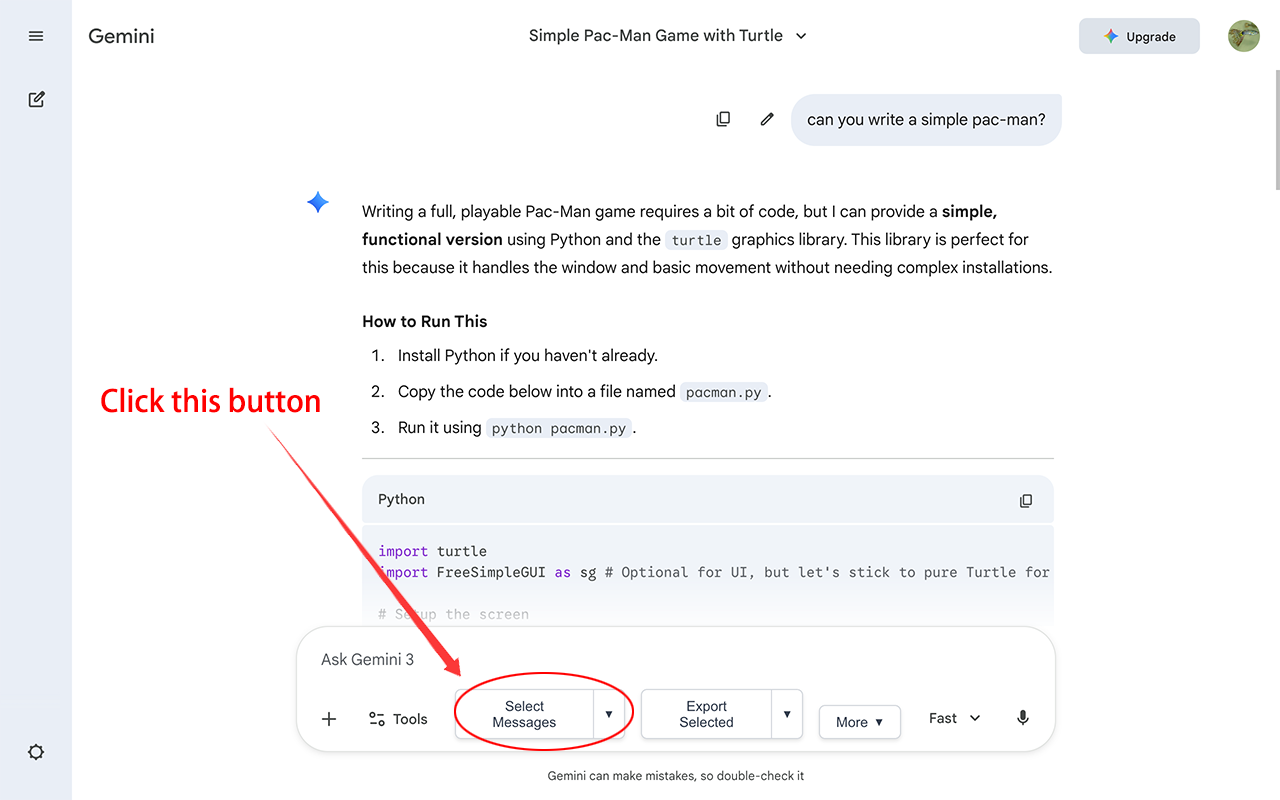
- Choose the messages or AI content you want to keep.
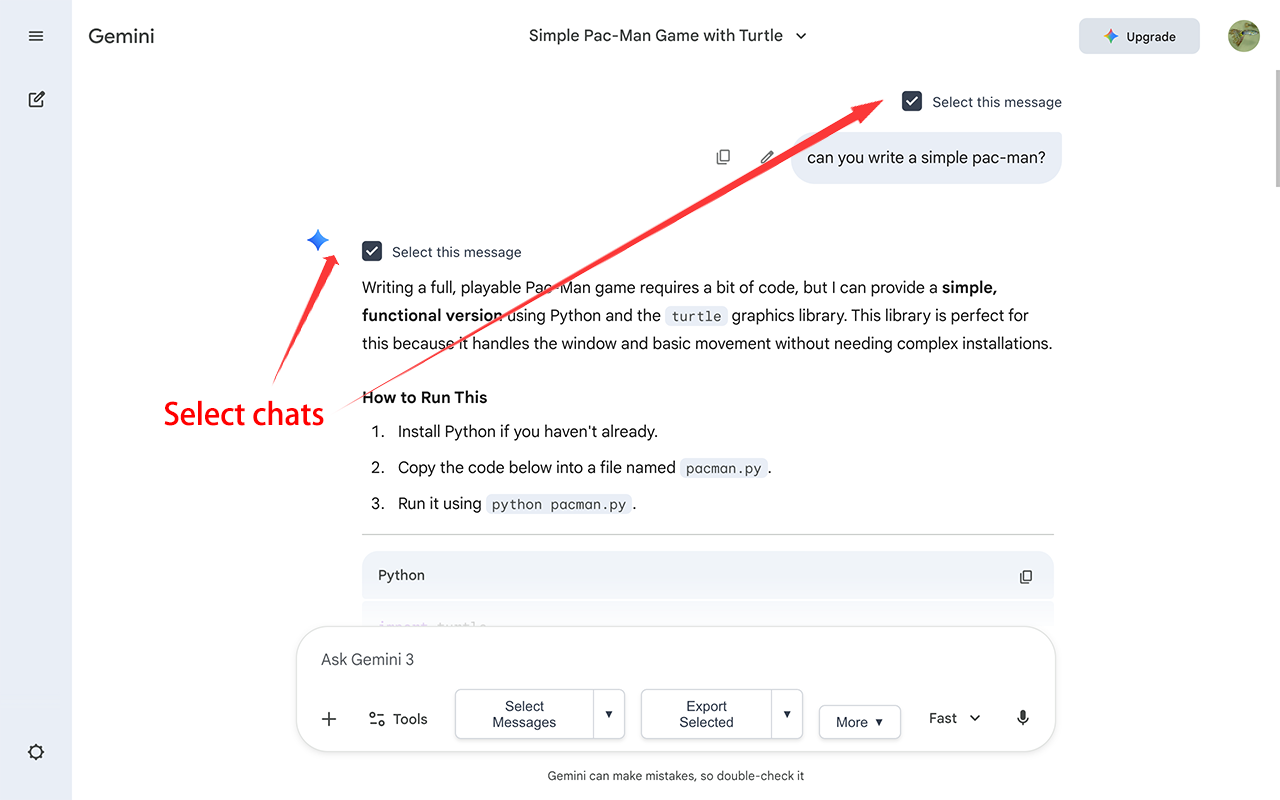
- Export the selection in your preferred format, or use Smart Copy.
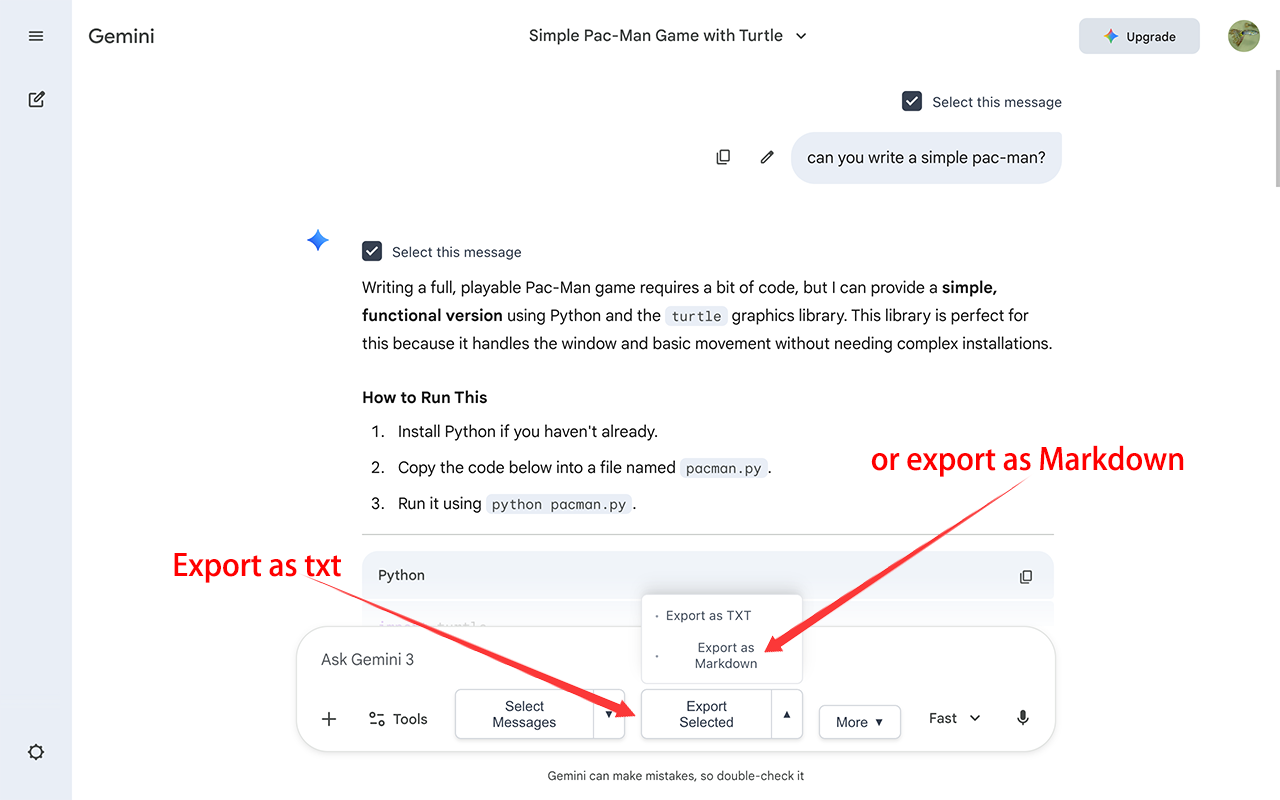
You don't have to export an entire conversation when only a few messages are useful.
What it does
Selective export
Choose the messages you want to save instead of exporting an entire conversation.
This is useful when a long discussion contains only a few answers, examples, or decisions worth keeping.
Three export formats
Export selected content as:
- Markdown (.md): for structured notes and knowledge organization.
- TXT (.txt): for simple, lightweight text files.
- HTML (.html): for browser-readable content with rich formatting. HTML is delivered as a ZIP archive so the page and associated images are packaged together.
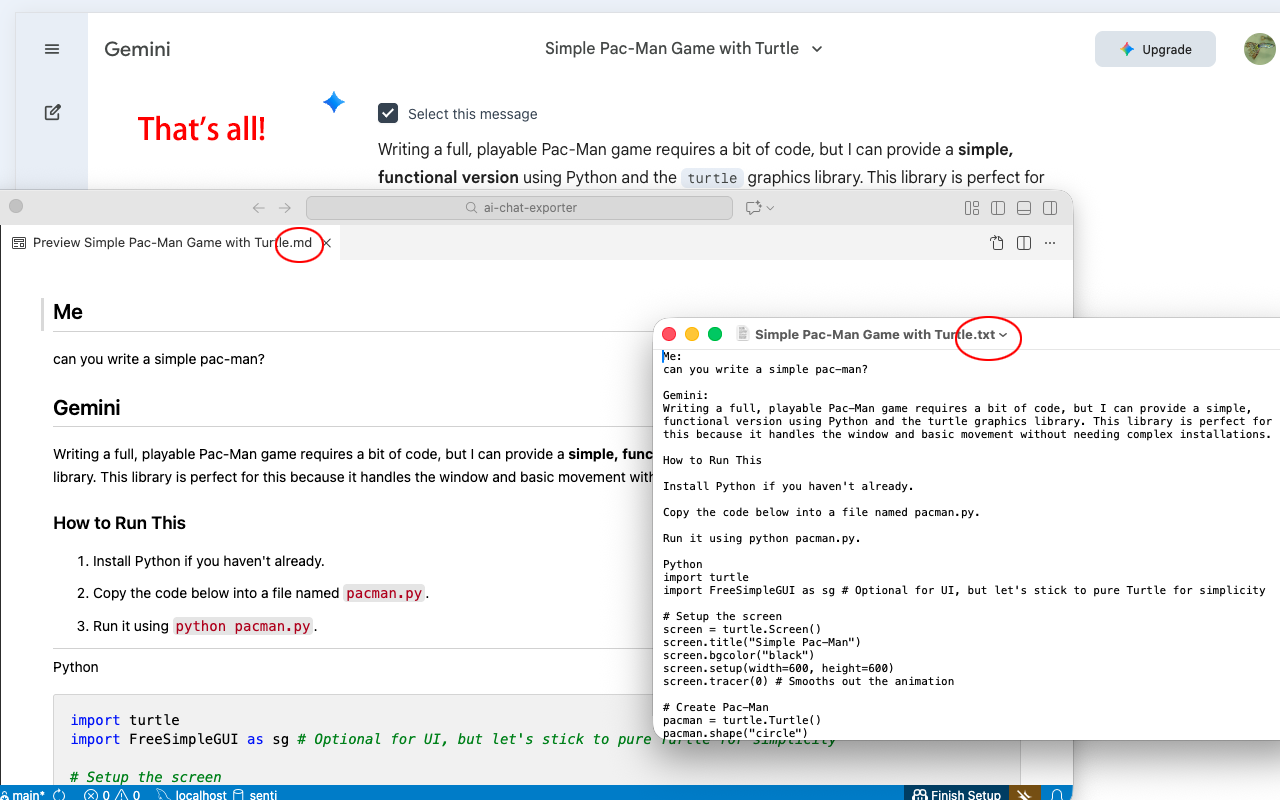
Preserved content structure
The extension preserves important elements such as:
- Headings.
- Lists.
- Code blocks.
- Tables.
- LaTeX mathematical expressions.
This is especially useful when saving technical explanations, structured comparisons, tutorials, and learning materials.
Smart Copy
You can copy selected content directly for use in applications such as:
- Notion.
- Obsidian.
- Google Docs.
- Microsoft Word.
- Other note-taking and document tools.
This is useful when you want to move information into an existing document instead of creating a separate export file.
AI-generated images
The extension can also save AI-generated images when available, helping you keep visual content alongside the conversation material.
Meaningful file names
Exported files use names based on the conversation title, making them easier to recognize and organize later.
Google AI Overviews and AI Mode support
AI Chat Exporter also supports Google AI Overviews and Google AI Mode.
This lets you extract and save AI-generated summaries or deeper AI conversations directly from supported Google Search pages.
What AI Chat Exporter does not do
We think it is important to be clear about the product's limits.
- It exports Markdown, TXT, and HTML. HTML is delivered as a ZIP archive. It does not currently export PDF or JSON.
- It does not automatically merge or compare answers from different AI platforms. It gives you consistent files that you can organize and compare using Notion, Obsidian, or other tools.
- It is not a replacement for official account backups. Use official exports for account-level backups and selective exports for everyday reference.
- It does not require you to move your entire AI history into a new online service.
Privacy
Conversation processing takes place directly in your browser. Chat content is not uploaded to the AI Chat Exporter server.
Who is it useful for?
AI Chat Exporter is useful whenever you want to keep selected information from an AI conversation without manually copying and formatting it.
For example:
- A traveler saving a useful itinerary.
- Someone comparing products before making a purchase.
- A professional keeping a helpful email draft or project discussion.
- A student saving a clear explanation of a difficult topic.
- A developer keeping a code example or debugging solution.
- A researcher collecting useful material from multiple AI assistants.
You don't need to change how you use AI. Just save the parts that are worth keeping.
Get AI Chat Exporter for Chrome
A Practical Workflow for Building Your AI Knowledge Collection
You don't need an elaborate system to benefit from saving AI conversations.
Here is a simple workflow that works for both casual and frequent AI users.
Step 1: Use AI assistants naturally
Don't worry about organizing every conversation while you work.
Ask questions, explore ideas, make corrections, and follow up as usual.
The purpose of an AI assistant is to help you think and get things done, not to create extra filing work.
Step 2: Identify what is worth keeping
Before closing a conversation, ask yourself:
Would I want to find this information again?
If the answer is yes, consider saving the useful messages.
It might be a complete discussion, a final answer, a comparison table, or just one explanation.
Step 3: Choose a suitable format
Select a format based on what you plan to do with the content:
- Use TXT for simple text.
- Use Markdown for notes and structured information.
- Use HTML when you want a browser-readable copy with rich formatting and associated images.
Step 4: Organize by topic or project
Save the exported files in folders or import them into Notion or Obsidian.
Try not to create completely separate collections for every AI platform.
A folder called "Travel" is often more useful than separate folders called "ChatGPT Travel," "Claude Travel," and "Gemini Travel."
Step 5: Refine only what matters
Some conversations are worth keeping exactly as they are.
Others may deserve a short summary or a separate note containing the key conclusions.
You don't have to turn every exported chat into a polished document. Spend time organizing only the information you expect to use again.
Step 6: Revisit and reuse
When a similar question comes up in the future, search your saved material before starting from scratch.
You may find a useful explanation, an earlier decision, or a piece of research that gives you a head start.
Over time, this simple habit can turn scattered AI conversations into a personal resource built from your own work and learning.
Frequently Asked Questions
How do I export a single ChatGPT conversation?
ChatGPT's official data export is designed to provide a copy of your account data rather than a convenient one-click export of selected messages from a single conversation.
For one conversation, you can copy and paste the content, print or save it as a PDF from your browser, use a share link, or use a browser extension such as AI Chat Exporter to export selected messages as Markdown, TXT, or HTML.
Can I export ChatGPT conversations to Markdown?
ChatGPT's official account export does not provide a Markdown export.
If you want to save a conversation as a Markdown file, you can copy and convert the content yourself or use an extension such as AI Chat Exporter to export selected messages directly as Markdown.
Can I export all my ChatGPT conversations at once?
Yes. Open Settings → Data controls → Export data and confirm your request.
OpenAI will send you a download link when the archive is ready. The process can take up to 7 days, and the link expires 24 hours after delivery.
Self-service exports are not available for ChatGPT Business, Enterprise, or ChatGPT for Healthcare workspaces.
See the official export instructions.
Does Claude have a way to export conversations?
Yes. Individual Claude users can export their data from Settings → Privacy → Export data on the web or desktop app.
The export includes account information and conversation data. You will receive a download link by email.
Team and Enterprise members may need an organization owner to enable individual data exports.
See Claude's official export guide.
How do I export Gemini chats?
Use Google Takeout.
To export chats, select My Activity → Gemini Apps. If you also want your Gems, select the separate Gemini item.
See Google's Gemini Apps data export guide.
Can I export only selected messages instead of an entire conversation?
Yes. AI Chat Exporter lets you select specific messages and export only the content you want to keep.
This is useful when a long conversation contains only a few valuable answers, examples, or decisions.
Which formats does AI Chat Exporter support?
AI Chat Exporter supports three export formats:
- Markdown (.md): for structured notes and knowledge organization.
- TXT (.txt): for simple, lightweight text.
- HTML (.html): for browser-readable content with rich formatting. HTML is delivered as a ZIP archive so the page and associated images are packaged together.
It does not currently support PDF or JSON export.
Is Markdown better than TXT for saving AI conversations?
It depends on what you want to keep.
TXT is simple and lightweight, making it suitable for basic text.
Markdown preserves more structure, including headings, lists, code blocks, and tables. It is usually more convenient for learning materials, technical notes, and long-term organization.
When should I use HTML instead of Markdown?
HTML is useful when you want to read an exported conversation in a browser and retain richer web-style formatting.
With AI Chat Exporter, the HTML page and associated images are packaged together in a ZIP archive.
Markdown is generally more convenient if you plan to edit the content as plain text or import it into a Markdown-based knowledge system such as Obsidian.
Can I import exported Markdown files into Obsidian?
Yes. Obsidian works with Markdown files.
You can place exported .md files directly into your vault and organize them with folders, tags, and internal links.
Can I save conversations from different AI platforms in one place?
Yes. Export content from supported platforms into consistent formats such as Markdown or TXT, then organize the files by topic, project, or category in your preferred file manager or knowledge app.
AI Chat Exporter supports ChatGPT, Claude, Gemini, Google AI Overviews, and Google AI Mode.
The extension does not automatically merge conversations from different platforms, but it makes it easier to save content in formats you can manage together.
Does AI Chat Exporter work with Google AI Overviews and AI Mode?
Yes. AI Chat Exporter supports Google AI Overviews and Google AI Mode, in addition to ChatGPT, Claude, and Gemini.
You can extract and save supported AI-generated summaries or deeper conversations from Google Search pages.
Does AI Chat Exporter merge or compare answers from different platforms?
No. It exports selected content into consistent file formats.
You can then open the exported files in Notion, Obsidian, or another application to read, organize, and compare the information yourself.
Is my conversation content uploaded to AI Chat Exporter?
No. Conversation processing takes place directly in your browser. Chat content is not uploaded to the AI Chat Exporter server.
For more information, see the AI Chat Exporter privacy policy.
Conclusion: Don't Let Your Best AI Conversations Get Lost
AI assistants can help us plan, learn, write, research, and solve problems. But the value of a good conversation shouldn't disappear just because we close the tab.
You don't need to save every question or build a complicated knowledge management system.
Start with the conversations that contain something worth revisiting. Use official exports when you need a full account backup, save selected messages when you only need specific information, and organize useful material by topic or project.
Choose TXT for simplicity, Markdown for structured notes, or HTML when you want a richer browser-readable copy.
Over time, scattered conversations can become a collection of information you can return to, build on, and reuse.
You don't need to remember which assistant gave you an answer. You just need a reliable way to keep the information that matters.
Save your conversations. Organize your knowledge. Reuse what you've learned.